
One Search for Google Drive, OneDrive, and Local Files
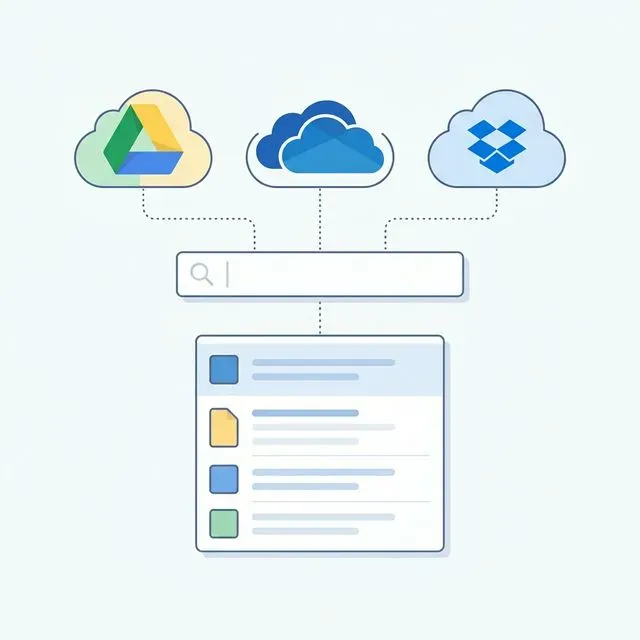
Where did you put that file?
It’s a simple question that’s become surprisingly hard to answer. The file might be in your Documents folder. It might be in Google Drive. It might be in OneDrive because your company uses Microsoft 365. It might even be in Dropbox, which you used at a previous job and never fully migrated away from.
In the old days, all your files were on your computer. One search, one place. Now, files are scattered across local storage and multiple cloud services, each with its own search interface, its own quirks, its own limitations.
Finding a file means checking multiple places. Did I save it locally? Was it a Google Doc? Did someone share it through OneDrive? This fragmentation turns a simple search into a multi-step investigation.
The Multi-Cloud Reality
Section titled “The Multi-Cloud Reality”Very few people choose to use multiple cloud storage services. It happens organically, often without conscious decision.
Your company provides OneDrive or Google Workspace. That’s where work files go. But you have personal files in a different service—maybe the one you chose years ago, or the one that comes with your phone, or the one your family shares.
You collaborated on a project with people who use a different cloud than you do. Files ended up wherever was most convenient for the group, not where you’d normally put them.
Different devices sync to different services. Your iPhone backs up to iCloud. Your Android phone uses Google Drive. Your work laptop syncs to OneDrive.
Over time, files accumulate across all these services. Moving everything to one place would be a massive project, and the reality is that you’ll probably continue using multiple services because different parts of your life are tied to different ecosystems.
The Search Fragmentation Problem
Section titled “The Search Fragmentation Problem”Each cloud service has its own search:
- Google Drive: Search box at drive.google.com, or in the Drive app
- OneDrive: Search in the OneDrive web interface or File Explorer
- Dropbox: Search at dropbox.com or in the Dropbox app
- iCloud: Search through iCloud.com or Finder on Mac
- Local files: Spotlight, Windows Search, or File Explorer
When you need to find something, you have to decide which service to search first. Often you guess wrong. You search OneDrive, find nothing, then search Google Drive, find nothing, then finally find the file locally—or in a cloud service you forgot you used.
This is cognitively expensive. Instead of one mental operation (“search for my file”), you’re doing multiple operations (“search here, evaluate results, decide where to search next, repeat”). The overhead adds up, especially when you’re trying to focus on actual work.
Different Search Capabilities
Section titled “Different Search Capabilities”Making matters worse, each search has different capabilities and limitations.
Google Drive’s search is arguably the best of the cloud services—fast, usually accurate, and able to search inside documents. But it only searches Google Drive.
OneDrive’s search is integrated with Microsoft 365, which helps for Office documents. But it can be slow, and it doesn’t search your local files effectively unless they’re synced to OneDrive.
Local search (Spotlight or Windows Search) has all the reliability problems we’ve discussed elsewhere. It might search inside documents, or it might not, depending on index state, file types, and the phase of the moon.
There’s no unified query language or interface. Skills you develop for searching one service don’t transfer to others.
The Sync-Everything Approach
Section titled “The Sync-Everything Approach”One attempted solution is to sync all your cloud files locally, then search locally. If everything is on your hard drive, you can search with one tool.
This approach has major problems:
Storage requirements: Cloud storage is cheap; local storage is not. If you have hundreds of gigabytes across multiple cloud services, you might not have room to sync it all locally.
Sync conflicts: When files exist in multiple places, keeping them synchronized becomes complex. Changes in one location might not propagate correctly to others.
Bandwidth consumption: Initial sync of large cloud accounts takes forever. Ongoing sync consumes bandwidth continuously.
Search still unreliable: Even with everything local, you’re depending on Spotlight or Windows Search, which have their own reliability issues.
Multiple sync clients: Each cloud service requires its own sync client running in the background, consuming system resources.
The sync-everything approach trades one set of problems for another. It can work for people with modest file collections and ample local storage, but it doesn’t scale.
The Aggregator Approach
Section titled “The Aggregator Approach”Some tools try to provide a unified view of multiple cloud services without syncing everything locally. They connect to your cloud accounts and present a single interface for browsing and managing files across services.
This helps with file management but often doesn’t help with search. The aggregator might show you files from multiple services in one view, but searching still requires querying each service’s API separately. You get a unified interface but not unified search.
Performance is also an issue. Aggregators that don’t maintain local indexes need to query cloud APIs for every search. This is slow, dependent on connectivity, and limited by API rate limits.
True Unified Search
Section titled “True Unified Search”What you actually want is a single search that covers all your files—local and cloud—with consistent behavior and instant results.
This requires:
- Connections to multiple cloud services: OAuth integrations with Google Drive, OneDrive, and others
- Local indexing: Download and index file contents locally so search is fast and works offline
- Unified query interface: One search bar, one query language, consistent results
- Content search: Find files by what’s inside them, not just their names
- Real-time updates: Keep the index current as files change in any location
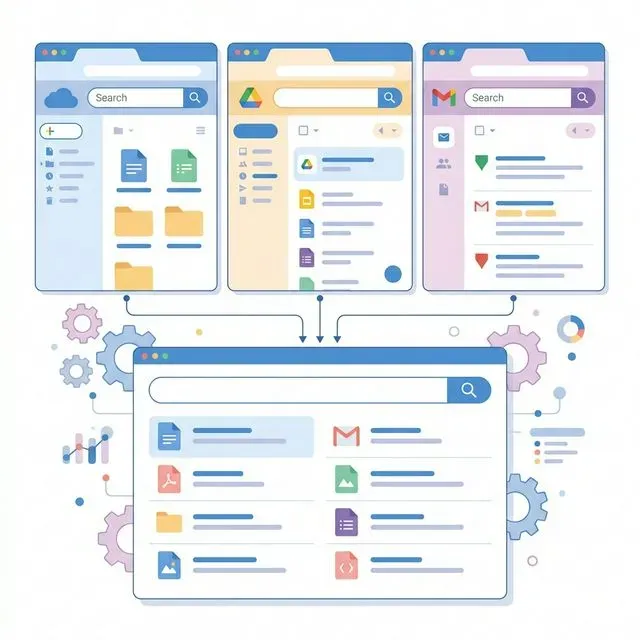
Tamsaek: One Search, All Your Files
Section titled “Tamsaek: One Search, All Your Files”Tamsaek provides genuine unified search across local files and multiple cloud storage services.
Supported services:
- Google Drive (personal and Workspace)
- Microsoft OneDrive
- SharePoint
- Local files (Mac, Windows, Linux)
When you connect a cloud service, Tamsaek downloads your files and builds a local search index. This index includes file contents—not just names—so you can find documents by what’s inside them.
The index lives on your computer, updated whenever you’re online. Search is instant because it queries the local index, not cloud APIs. And because the index is local, search works even when you’re offline.
One Query, All Results
Section titled “One Query, All Results”Type your query in Tamsaek, and results include files from everywhere:
- Documents from Google Drive
- Spreadsheets from OneDrive
- PDFs from your local Documents folder
- Presentations from SharePoint
Results are unified and ranked by relevance, regardless of where files are stored. You don’t need to know or guess which service has the file—Tamsaek searches all of them.
Smart Source Filtering
Section titled “Smart Source Filtering”Sometimes you do want to limit your search to a specific source. Tamsaek makes this easy:
- Search everything by default
- Filter to specific cloud services or local folders
- Combine filters with content queries
This gives you the best of both worlds: unified search when you don’t know where something is, targeted search when you do.
Natural Language Across All Sources
Section titled “Natural Language Across All Sources”Tamsaek’s AI-powered search works across all connected sources. “Budget spreadsheet from last quarter” searches Google Drive, OneDrive, and local files simultaneously, understanding your intent regardless of where the file is stored.
This is particularly powerful for cross-service searches. The spreadsheet might be in Drive, the supporting documents in OneDrive. One natural language query finds everything relevant.
Privacy Preserved
Section titled “Privacy Preserved”Despite connecting to cloud services, Tamsaek respects your privacy:
- Cloud credentials use standard OAuth (Tamsaek never sees your password)
- Files are downloaded to your local machine
- All indexing happens locally
- Search queries are processed on-device
- Nothing is uploaded to Tamsaek’s servers
You’re not adding another cloud service that has copies of your files. You’re creating a local index that you control.
Set Up Unified Search
Section titled “Set Up Unified Search”Getting started takes about ten minutes per cloud service:
- Download Tamsaek
- Connect Google Drive (OAuth login, approve permissions)
- Connect OneDrive (OAuth login, approve permissions)
- Let initial indexing complete
- Search everything from one place
Initial indexing takes time for large cloud accounts, but it runs in the background. Once complete, you have permanent unified search across all your files.
Stop Searching in Silos
Section titled “Stop Searching in Silos”Your files are scattered. That’s the reality of modern computing. But your search doesn’t have to be scattered too.
Download Tamsaek and find any file, anywhere, instantly.
Related articles: