
OneDrive Search Not Working? Here's How to Find Your Files

The File That Vanished
Section titled “The File That Vanished”You saved it last Tuesday. You’re absolutely sure of it. A contract, maybe. Or a presentation draft. You remember the feeling of relief when you hit save and saw that green checkmark appear next to the file name. It was synced. It was safe. It was somewhere in OneDrive.
So you open the search box. You type the file name. You wait.
Nothing.
You try a partial name. You try searching for words you know were inside the document. You scroll through folders, clicking through directories, opening subfolders, checking names you haven’t looked at in months. Maybe you saved it in the wrong folder. Maybe it didn’t sync after all. Maybe you’re losing your mind.
Or worse, the search returns hundreds of results. Files from three years ago. Files shared with you by colleagues you’ve never met. Files with similar names that have nothing to do with what you need. Somewhere in this haystack is your needle, and OneDrive is not helping you find it.
This happens to people every day. And it happens because OneDrive search is not as straightforward as it seems.
Why OneDrive Search Is So Frustrating
Section titled “Why OneDrive Search Is So Frustrating”Most of us assume that cloud storage search works the same way searching our computer works. You type something. You find it. Simple.
But OneDrive is not your computer. It’s a complex system with several moving parts, and each one introduces opportunities for search to fail.
The Files On-Demand Problem
Section titled “The Files On-Demand Problem”One of OneDrive’s most popular features is also one of its biggest search headaches. Files On-Demand lets you see all your OneDrive files in File Explorer without downloading them to your computer. This saves space, but it creates a disconnect.
When a file is set to “cloud only,” it exists as a placeholder on your computer. Your local search cannot look inside that placeholder. It cannot see the text in a Word document or the content of a PDF. When you search locally, these files are invisible.
You might think searching within the OneDrive app or website would solve this. But the web interface has its own issues. It can be slow, indexing lags behind changes, and sometimes it simply misses files that are definitely there.
The Business vs Personal Confusion
Section titled “The Business vs Personal Confusion”Many people have both OneDrive for Business and OneDrive Personal accounts. They look similar. They have similar names. They both sync to your computer. But they do not talk to each other.
You might be searching your Business account when the file is in your Personal account. Or vice versa. The search interface for each is slightly different, with different capabilities and limitations. This confusion alone explains countless failed searches.
SharePoint Silos
Section titled “SharePoint Silos”If you work in an organization that uses Microsoft 365, your files might be in SharePoint libraries rather than your personal OneDrive. SharePoint has its own search system, separate from OneDrive search. A file shared with your team could be sitting in a SharePoint site you’ve never visited, completely invisible to your OneDrive search.
When you type in that search box, you expect it to check everywhere. It does not.
The Duplicate File Nightmare
Section titled “The Duplicate File Nightmare”Sync conflicts happen. Two people edit the same file. You edit a file while offline. OneDrive gets confused about which version is correct. The result is often duplicate files with names like “Contract (1).docx” and “Contract (2).docx” and “Contract - Copy.docx.”
Now imagine searching for “Contract.docx.” Which one do you get? The one from last week? The one from yesterday? The one your colleague created? OneDrive search does not always make this clear, and you might open the wrong version, edit it, and create yet another duplicate.
What’s Actually Inside
Section titled “What’s Actually Inside”OneDrive search can look inside some file types but not others. Word documents and Excel files are usually searchable. But scanned PDFs, images, and certain other formats are not unless they have been processed by advanced features that may or may not be available depending on your subscription level.
So you might search for a word you know is in a scanned contract and get zero results, even though the file is right there in your folders.
The Usual Fixes (And Why They Only Help So Much)
Section titled “The Usual Fixes (And Why They Only Help So Much)”When OneDrive search fails, the internet offers standard advice. These solutions help some of the time, which is why they’re worth trying.
Check Your Sync Status
Section titled “Check Your Sync Status”First, make sure your files are actually synced. Look at the OneDrive icon in your system tray. Is there a sync in progress? Are there error messages? Sometimes files fail to upload or download, and the only way to know is to check the sync status manually.
Force a Full Sync
Section titled “Force a Full Sync”If files are stuck in “cloud only” mode, you can right-click a folder and select “Always keep on this device.” This downloads the files to your computer, where they become searchable by your local search. The downside is that this takes up disk space, and you have to do it proactively. You cannot search files you did not already decide to download.
Use the Web Interface
Section titled “Use the Web Interface”Sometimes the OneDrive website at web.onedrive.com returns different results than the desktop app. It’s worth checking both. The web version may have more recent indexing, though it can also be slower and less responsive.
Clear the Cache
Section titled “Clear the Cache”OneDrive stores a local cache of file information. Sometimes this cache gets corrupted. Unlinking OneDrive from your computer and setting it up again can clear problems. This is time-consuming and means downloading all your files again, but it sometimes resolves mysterious search failures.
Check Your Search Scope
Section titled “Check Your Search Scope”Make sure you’re searching the right place. Are you in the Business view or the Personal view? Are you looking in the right SharePoint site? OneDrive search defaults to certain locations and ignores others. Understanding these boundaries helps, even if it does not make the search work better.
The Deeper Issue
Section titled “The Deeper Issue”All of these workarounds address symptoms, not the underlying problem. The fundamental issue with cloud storage search is that you are at the mercy of the cloud.
When you search OneDrive, you are not searching your files. You are searching Microsoft’s index of your files. That index lives on Microsoft’s servers. It updates on Microsoft’s schedule. It follows Microsoft’s rules about what gets indexed and what does not.
If the index is out of date, you cannot fix that. If Microsoft decides not to index the contents of certain file types, you cannot change that. If the servers are slow or down, you cannot search at all.
Your files are yours, but your ability to find them depends on a system you do not control.
This disconnect between ownership and access is unique to the digital age. Physical papers in a filing cabinet remain accessible regardless of what happens to the filing cabinet company. But digital files in the cloud can become temporarily or permanently unreachable based on factors entirely outside your influence.
This is especially frustrating when you need a file urgently. Waiting for a sync to finish. Waiting for an index to update. Trying different search terms because the exact word you typed does not match the way the system indexed your document. These delays add up, turning a simple task into a significant time sink.
There has to be a better way.
A Different Approach to Finding Your Files
Section titled “A Different Approach to Finding Your Files”What if you could search your cloud files the same way you search your computer? What if you had a local copy of the index, built on your machine, under your control?
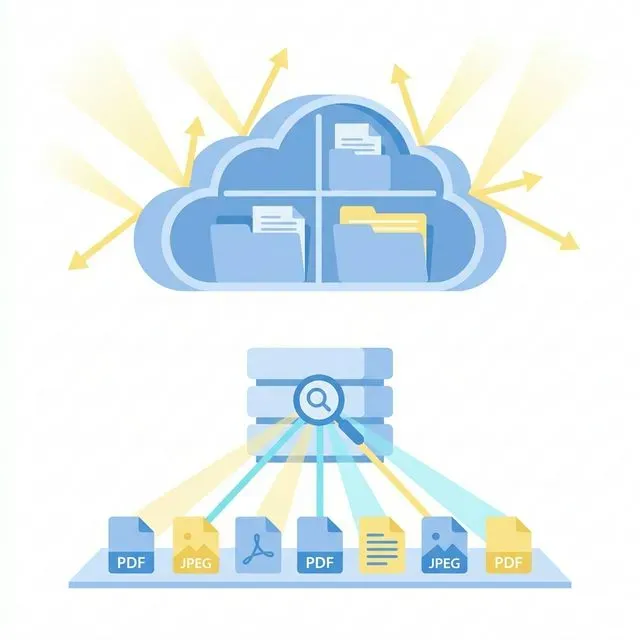 This is the idea behind Tamsaek.
Tamsaek is a search application designed to solve exactly these problems. Instead of relying on cloud-based indexes that may or may not be current, Tamsaek downloads your OneDrive files to your computer and builds its own search index locally.
How It Works
Section titled “How It Works”When you connect Tamsaek to OneDrive, it syncs your files to your local machine. Unlike OneDrive’s selective sync, this is designed for search. Tamsaek creates a local copy of your files specifically so it can look inside them.
Then it indexes everything. Word documents, PDFs, spreadsheets, presentations. Tamsaek reads the contents of each file and builds a local search index. This process takes some time initially, but once complete, searching becomes nearly instant.
The key difference is where this happens. The index lives on your computer. You own it. You control it. When you search, you are not sending queries to Microsoft’s servers and waiting for a response. You are searching your own local index at the speed of your own hardware.
Search Inside File Contents
Section titled “Search Inside File Contents”Remember that scanned PDF OneDrive could not search? Tamsaek handles those too. It uses local text recognition to make scanned documents searchable. The budget spreadsheet from last year that you only remember by a number inside it? Tamsaek can find that.
You are no longer limited to searching file names. You can search for phrases, numbers, addresses, or any text that appears inside your documents.
Work Offline
Section titled “Work Offline”Because everything is local, you can search your OneDrive files even when you have no internet connection. On a plane, in a coffee shop with bad wifi, at a client site with restricted network access. Your files and your ability to find them travel with you.
One Search for Everything
Section titled “One Search for Everything”Tamsaek does not stop at OneDrive. It can connect to Google Drive, search your local hard drive, and index browser history. Instead of searching each location separately and trying to remember where you saved something, you search once and see results from everywhere.
That contract you thought was in OneDrive but was actually attached to an email in Gmail? Tamsaek can find it. The file you saved locally last year before you started using OneDrive? Tamsaek sees that too.
Privacy First
Section titled “Privacy First”Because all indexing happens locally, your file contents never leave your computer for search purposes. You are not uploading sensitive documents to a remote server to make them searchable. Your data stays yours.
This matters for contracts, financial documents, medical records, or any file you would prefer to keep off third-party servers as much as possible.
Getting Your Files Back
Section titled “Getting Your Files Back”If you have been struggling with OneDrive search, you know how much time it can waste. The mental load of remembering where things are, trying different search terms, checking multiple locations. It adds friction to work that should be simple.
There are workarounds for OneDrive’s search limitations, and they help some of the time. But the fundamental architecture of cloud storage search means you will always be dependent on systems outside your control.
A local search index changes the equation. It puts you back in charge of finding your own files. It makes your content searchable in ways cloud services cannot match. And it works whether your internet connection is fast, slow, or nonexistent.