
Search Across All Your Drives: Local, External, and Cloud
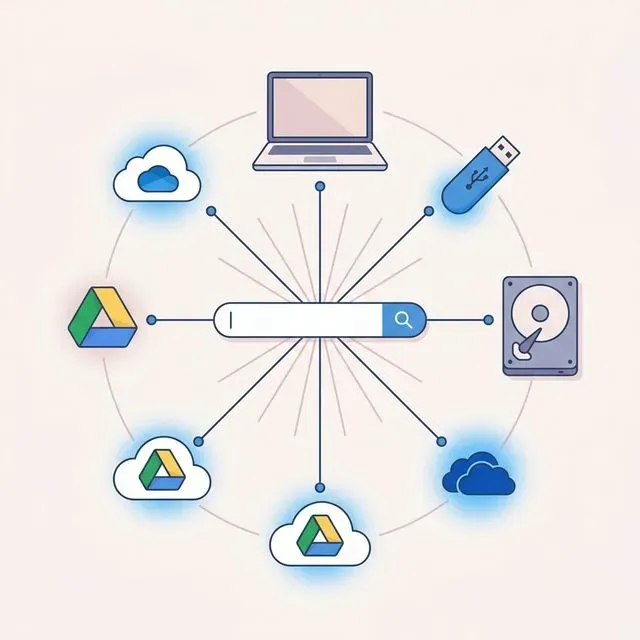
The Modern File Scattering Problem
Section titled “The Modern File Scattering Problem”Take a moment to think about where your files actually live right now. Some are on your laptop’s internal drive, sitting in folders you created years ago. Others are on an external hard drive you bought when your computer started running out of space. Your work documents might be in Google Drive or OneDrive. Your photos could be in a different cloud service entirely. Older projects might be on a USB stick in your desk drawer.
This is the reality of modern file storage. We accumulate files across multiple locations over years, each decision made sense at the time but creating a fragmented landscape that becomes harder to navigate with every passing month. The file you need right now could be in any of a dozen places, and you have no way of knowing which one until you check.
The worst part is that this fragmentation happens so gradually you barely notice it. One day you realize you are spending more time figuring out where a file is stored than actually using the file. You have become a file archaeologist, excavating through layers of digital history just to find a document from six months ago.
It was not always this way. Ten or fifteen years ago, most of your files lived on one computer. One drive, one set of folders. If you needed a file, you knew where to look. But as storage options multiplied, so did the places your files could end up. Cloud storage, external drives, USB sticks, network drives at the office, multiple computers at home and work. Each one added convenience while quietly eroding your ability to find anything.
Today, the average person uses three or four different storage locations regularly, and has files in several more they have half forgotten about. Every new device, every new cloud service, every new external drive adds another layer to the puzzle.
The mental overhead of managing this fragmentation is real. Even when you are not actively searching for a file, part of your brain is maintaining the map: work stuff is in Drive, personal stuff is on the laptop, old photos are on the WD external, tax documents are in OneDrive. When that mental map fails, and it always does eventually, you find yourself staring at a search bar wondering where to even begin.
How Fragmentation Multiplies Your Work
Section titled “How Fragmentation Multiplies Your Work”Files accumulate across devices for perfectly reasonable reasons. You bought an external drive because your laptop was full. You started using Google Drive because your team needed to collaborate. You put photos on a different service because it had better storage pricing. Each choice solved a problem, but together they created a new one.
Old Projects on External Drives
Section titled “Old Projects on External Drives”Old projects inevitably end up on external drives. Once you finish a big project, you archive it to an external disk to free up space on your main machine. Six months later, a client asks for a revision. Now you need to find that specific project folder among hundreds of others on a drive you rarely connect. Was it on the Samsung drive or the WD drive? Which folder did you use? Was it called ProjectAlpha or ClientName_2023?
And sometimes the drive itself becomes a problem. You plug it in and your operating system takes a moment to mount it. The folder structure inside is a time capsule of your organizational habits from years ago, which may bear little resemblance to how you organize things now. You are essentially visiting a past version of yourself and trying to understand their filing logic.
Work Files in Cloud Storage
Section titled “Work Files in Cloud Storage”Work files end up in cloud storage because that is where collaboration happens. But cloud storage has its own organizational logic that may not match how you think about your files. The search inside Google Drive works great for recent items, but try finding something from two years ago. The interface has changed, the folder structure has shifted, and suddenly you are clicking through screen after screen hoping to stumble across what you need.
Different cloud services also have different search capabilities. Google Drive is reasonably good at searching file contents. OneDrive is more hit-or-miss. SharePoint is a labyrinth where files go to disappear. And if your workplace uses more than one of these services, you now have multiple cloud silos to search through separately.
Personal Files Everywhere Else
Section titled “Personal Files Everywhere Else”Personal files scatter even further. Photos from your phone sync to one service. Documents you download from email sit in your Downloads folder. Files you created for a side project live in yet another location. Each category of file has its own home, and there is no map connecting them all.
Over the years, this adds up to a storage landscape that only you can navigate, and even you struggle with it. Ask someone else to find a file on your system and they would be completely lost. That fragility is a warning sign that something is fundamentally broken about how we manage files.
The tragedy is that each storage decision you made was perfectly rational. External drives for overflow, cloud for collaboration, local for speed. The problem is not any individual choice but the cumulative effect of all of them together. You optimized for storage and accidentally destroyed your ability to search.
The Coping Strategies That Always Break Down
Section titled “The Coping Strategies That Always Break Down”Over time, you develop workarounds. You try to memorize which files live where. This works for a while, as long as you are dealing with a small, stable set of locations. But memory fails under pressure and fades over time. The file you were certain was on your external drive was actually in Dropbox. The photo you thought was in Google Photos turns out to be a local file you never synced.
The Sequential Search
Section titled “The Sequential Search”Another common approach is the systematic search. You start with your local drive, run a search, find nothing. Then you plug in your external drive, wait for it to mount, run another search, still nothing. Then you open your browser, navigate to Google Drive, run a search there. Then OneDrive. Then SharePoint. By the time you finish checking all your locations, twenty minutes have passed and you might still be empty-handed.
The sequential search is exhausting because each step feels like starting over. Different interfaces, different search syntax, different ways of displaying results. You are essentially repeating the same task five or six times in five or six different environments. And each time you switch, you lose the mental thread of what you were actually trying to accomplish.
The Duplication Trap
Section titled “The Duplication Trap”Some people solve this by duplicating everything. They keep copies of important files in multiple places just in case. The contract exists on the laptop, on the external drive, in Google Drive, and attached to an email they sent themselves. This approach technically works, but it creates a maintenance nightmare. Which version is current? Did you update all copies when you made that revision last month? The fear of not finding a file creates a chaos of duplicates that makes finding anything harder.
Giving Up and Starting Over
Section titled “Giving Up and Starting Over”The final coping strategy is giving up and starting over. You need a document, you cannot find it after searching for fifteen minutes, so you decide to just recreate it from scratch. This is perhaps the most demoralizing outcome. You are literally doing work you have already done because the system for storing and retrieving your work has failed you.
The Emotional Weight of Digital Chaos
Section titled “The Emotional Weight of Digital Chaos”There is an emotional dimension to file fragmentation that rarely gets acknowledged. When you cannot find something, you feel a spike of anxiety. Was it deleted? Did you imagine saving it? Is it on a drive that crashed? The uncertainty is stressful in a way that is disproportionate to the actual stakes. You are not losing something irreplaceable, most of the time. But the feeling of losing control over your own files is deeply unsettling.
Over time, this anxiety shapes behavior. You become reluctant to archive files to external drives because you know they will become harder to find later. You avoid using cloud storage for important documents because the search is unreliable. You keep everything on your main drive until it fills up, and then panic about what to move and where.
The irony is that modern storage is cheaper and more abundant than ever. You can buy a terabyte of external storage for the price of a nice lunch. Cloud storage offers seemingly unlimited space. The capacity to store files has never been greater, but our ability to find them has not kept pace. We have solved the storage problem and created a retrieval problem.
Why Operating System Search Falls Short
Section titled “Why Operating System Search Falls Short”Your computer came with search tools. Spotlight on Mac, Windows Search on PC. In theory, these should help you find files wherever they are. In practice, they have significant limitations that leave you searching manually more often than not.
Spotlight, for all its usefulness, does not search external drives unless you explicitly configure it to do so. Even then, indexing external drives is unreliable. Eject the drive and the index becomes stale. Reconnect it and Spotlight might take hours to catch up, if it catches up at all. During that time, your searches come back empty even though the files are right there.
For many people, Spotlight feels like a coin flip. Sometimes it finds exactly what you need. Other times it returns nothing for a file you saved ten minutes ago. The inconsistency is arguably worse than having no search at all, because at least with no search you know to browse manually. With unreliable search, you waste time waiting for results that may never come.
Windows Search has its own quirks. It respects indexing settings religiously, which means any drive not explicitly added to the index is essentially invisible to search. You can enable searching for non-indexed locations, but the results are slow and incomplete. The tool technically works, but it works badly enough that you stop trusting it.
Neither system searches cloud storage in any meaningful way. They might show you locally synced copies if you have sync clients installed, but they cannot search the cloud content that only exists online. Your Google Drive files that are not synced to your computer are invisible. Your OneDrive files set to online-only mode might as well not exist as far as your local search is concerned.
The fundamental problem is that operating system search was designed for a world where all your files lived on your computer. That world is gone. We live in a hybrid reality where files are distributed across local storage, external devices, and multiple cloud services. The tools have not caught up to this reality.
The External Drive Blind Spot
Section titled “The External Drive Blind Spot”External drives deserve special mention because they are uniquely problematic. When the drive is not connected, your computer has no idea what is on it. You cannot search files that your operating system cannot see. So you have to physically connect the drive, wait for it to mount, and then hope the indexing catches up quickly enough to return useful results.
For people who use external drives as archives — storing completed projects, old photos, backups from previous computers — this means their archive is essentially unsearchable unless they go through the effort of connecting and browsing manually. The convenience of cheap external storage comes with the hidden cost of inaccessibility.
Some people try to solve this by keeping a spreadsheet or text file that catalogs what is on each drive. This works until you forget to update the catalog, which happens approximately after the first week. Then you are back to plugging in drives one at a time and hoping for the best.
The bottom line is that external drives are invisible to your regular workflow. They hold some of your most valuable files, your archives, your backups, your completed work, and yet they are the hardest to search. It is like having a library where half the books are locked in a separate room that you can only enter by appointment.
USB flash drives add yet another dimension to the problem. They are small enough to lose, easy enough to forget, and rarely labeled in a way that helps you remember what is on them. That presentation you gave at a conference three years ago? It might be on a flash drive in a drawer somewhere. Or it might be gone forever. Without a way to search across all these tiny storage devices, you will never know for sure.
One Search for Every Location
Section titled “One Search for Every Location”What if you could search everywhere from one place? Not by connecting each drive and running separate searches, but by typing once and seeing results from your local drive, your external drives, your Google Drive, and your OneDrive all in one list.
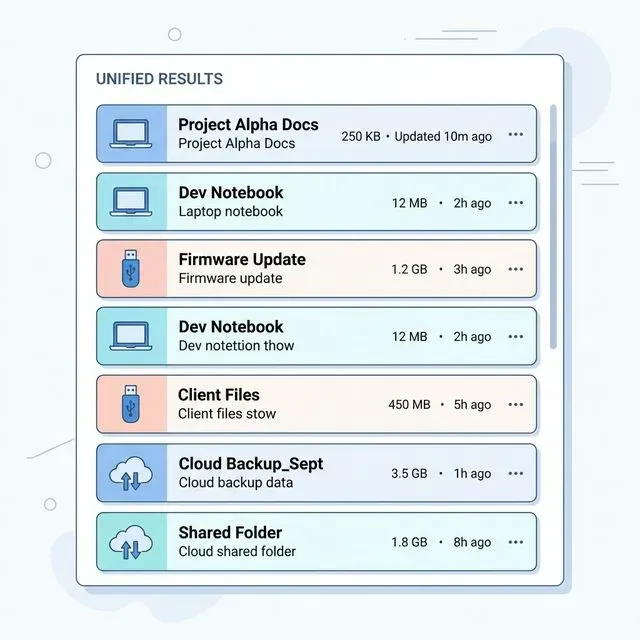 This is exactly what unified search is designed to do. Instead of treating each storage location as a separate universe, Tamsaek connects them all into a single searchable index. Your files stay where they are. You do not need to move everything to one location or maintain a complex syncing setup. The search layer reaches across all your storage and finds what you need regardless of where it lives.
Content Search Changes Everything
Section titled “Content Search Changes Everything”The key is content search. When you can search inside files, not just file names, the location matters less. You might not remember that the contract was saved in a folder called OldProjects on your external drive. But if you search for “termination clause” or “agreement signed March 2023,” the file appears in your results anyway. The system reads the content, understands what the file contains, and matches it to your query.
This is the difference between a search that finds files and a search that finds information. File name search requires you to know what the file is called. Content search in Tamsaek requires you to know what the file contains. And you almost always remember the content better than the name.
Natural Language Makes It Intuitive
Section titled “Natural Language Makes It Intuitive”Natural language queries make this even more powerful. Instead of trying to remember exact file names or folder structures, you describe what you are looking for in plain English. “The budget spreadsheet from last quarter.” “That photo from my sister’s wedding.” “The presentation I gave in January.” The search understands context and finds matches even when the file metadata does not contain those exact words.
Tamsaek: Unified Search in Practice
Section titled “Tamsaek: Unified Search in Practice”Tamsaek was built around this principle of unified search. It indexes your local drives, your external drives, and your connected cloud storage accounts. Everything happens locally on your machine, which means your files are never uploaded to a third-party server. Your data stays private while becoming searchable.
When you search in Tamsaek, you are searching across every location simultaneously. The results appear in seconds, ranked by relevance. You see file names, snippets of content, and which storage location each file comes from. One click opens the file directly, no matter where it lives. No more plugging in drives, no more opening browser tabs, no more wondering if you checked all the right places.
The setup is straightforward. You tell Tamsaek which folders and drives to index, connect your cloud storage accounts, and let it build the index. Once that initial process is complete, searches are instant. New files are picked up automatically as you add them.
What About External Drives?
Section titled “What About External Drives?”For external drives, Tamsaek indexes them when they are connected. Once indexed, the search metadata is stored locally, so you can see results from an external drive even when it is not plugged in. You will know which drive contains the file you need before you go find it in a drawer. When you do connect the drive, the file opens normally.
This solves one of the biggest pain points with external storage. Your archive is no longer a black box. You can search its contents anytime and only connect the physical drive when you actually need to open a file.
The Freedom of Finding Anything, Anywhere
Section titled “The Freedom of Finding Anything, Anywhere”There is a subtle but profound shift that happens when you stop worrying about where your files are stored. You no longer need to maintain a mental map of your digital filing system. You do not have to remember that photos go here, work files go there, and old projects live on that drive. You just search for what you need and it appears.
This frees you to organize files in ways that make sense for the work, not for retrieval. You can keep project files with the project, photos with the photos, and archives in long-term storage, all without creating a fragmented mess that becomes impossible to navigate. Tamsaek’s search layer abstracts away the complexity of the storage layer.
It also means you can actually use all your storage instead of defaulting to whatever is easiest to search. That external drive full of old projects becomes accessible again. The cloud storage you pay for but rarely use because searching it is frustrating becomes useful. Your files are where they should be, and you can find them anyway.
For students and researchers, this is transformative. Research materials scattered across course folders, cloud drives, and downloaded papers become a single searchable collection. You type a concept or a quote you half remember and find it across all your sources in seconds. No more retracing your steps through twenty browser tabs and five different folders.
For professionals, the impact on daily workflow is immediate. Client files, internal documents, email attachments, and shared drive contents all become searchable from one place. The question shifts from “where is this file?” to “what was in this file?” — and that is a much easier question to answer.
The anxiety of not knowing where something is stored fades away. You stop duplicating files “just in case” because you know you can find the original. You stop avoiding certain storage locations because the search makes them all equally accessible. Your digital life becomes simpler even as your storage setup stays complex.
This is what unified search offers. Not a forced consolidation of all your files into one location, but a layer of intelligence that sits on top of your existing setup and makes everything findable. Your files stay scattered, but you no longer have to care. That freedom, the ability to stop worrying about storage logistics and focus on the work itself, is what makes unified search not just convenient but genuinely transformative.
The next time you find yourself plugging in an external drive, opening three browser tabs, and running the same search query over and over in different places, remember: it does not have to be this way. One search bar, every drive, every cloud, every file. That is how search should work.