
How to Find Files by Date Modified or Created
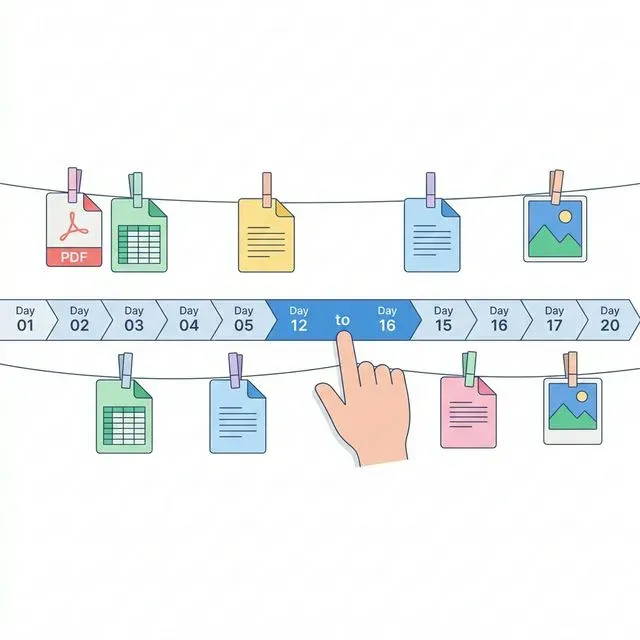
Think about how you remember files. Sometimes you remember the name, or at least part of it. Sometimes you remember what the file contains—a phrase, a topic, a specific piece of information. But often, especially for recent work, what you remember most clearly is when you worked on it.
“I edited that document last Tuesday.” “There was a spreadsheet I created sometime last month.” “I downloaded something yesterday that I need now.”
Time is one of the most natural ways humans organize memory. We think in terms of before and after, recently and long ago, this week and last quarter. So it should be trivially easy to find files based on when they were created or modified, right?
Wrong. Despite decades of operating system development, finding files by date remains surprisingly frustrating.
Why Date-Based File Search Is So Difficult
Section titled “Why Date-Based File Search Is So Difficult”Both macOS and Windows technically support date-based search. But the implementations are so clunky that most people don’t even know the features exist, and those who do often find them unreliable.
Spotlight’s Date Search: Hidden and Inconsistent
Section titled “Spotlight’s Date Search: Hidden and Inconsistent”Spotlight on Mac can filter by date, but Apple has hidden this functionality behind arcane syntax that most users will never discover.
If you know the magic incantations, you can type things like date:yesterday or modified:this week or created:>2024-01-01 into Spotlight. These queries sometimes work. But the syntax is poorly documented, the behavior is inconsistent, and there’s no visual date picker to help you construct queries.
Try searching for files modified “last Tuesday.” There’s no natural way to express this in Spotlight. You’d need to figure out the exact date, format it correctly, and type something like modified:2024-03-19. If you’re already going to that much trouble, you might as well just browse folders manually.
Spotlight’s date filtering also combines poorly with content search. If you want to find documents about “quarterly budget” from “last month,” good luck. The syntax for combining date filters with content queries is inconsistent and often fails silently. You type what seems like a reasonable query and get zero results, with no feedback about what went wrong.
Even when the syntax is correct, Spotlight’s date indexing isn’t always accurate. Files that were definitely modified recently sometimes don’t appear in date-filtered searches. The index can fall behind, especially after system updates or when dealing with files on external drives.
Windows Search: Clunky Syntax, Unreliable Results
Section titled “Windows Search: Clunky Syntax, Unreliable Results”Windows Search has similar problems. Yes, you can technically search by date using syntax like datemodified:last week or datecreated:today. But again, this syntax is hidden—most Windows users have no idea it exists.
The syntax is also finicky. datemodified: last week (with a space) might work differently than datemodified:last week (without). Certain date formats work in some regions but not others. You can spend more time debugging your search query than it would take to manually look for the file.
Windows Search also has a fundamental indexing problem. The search index often falls behind, especially for files in non-standard locations or on external drives. A file you just modified might not appear in search results for hours—or ever, if the indexing service has encountered one of its many possible failure modes.
File Explorer does let you sort folders by date, which helps if you know which folder to look in. But for finding files across your entire system, you’re back to fighting with the search syntax.
The Integration Problem
Section titled “The Integration Problem”Beyond the syntax issues, there’s a deeper problem: date-based search is usually separate from content search. You can find files modified yesterday, or you can find files containing certain text, but combining these queries is difficult or impossible.
In real life, though, this is exactly what you often want. “The contract I was working on last week”—that’s a combination of content (contract) and date (last week). Neither Spotlight nor Windows Search handles this combination gracefully.
The Manual Workarounds
Section titled “The Manual Workarounds”Since built-in search is so limited, people resort to manual approaches for finding files by date.
Sorting in File Explorer / Finder
Section titled “Sorting in File Explorer / Finder”The most common approach is to open the folder where you think the file might be, switch to list view, and sort by date modified. This works—but only if you know which folder to look in. If you’re searching across your entire system, you’d need to check every folder individually.
This approach also doesn’t help with content. You can find recently modified files, but you can’t search within those files for specific text.
Creating “Recent” Folders
Section titled “Creating “Recent” Folders”Some people organize their workflow around date-based folders: “2024-03,” “2024-04,” and so on. New files go into the current month’s folder. This can help with recent files, but breaks down for older files. Was that spreadsheet from December 2023 or January 2024? You might have to check both folders.
Date-based organization also conflicts with project-based organization. Should a file live in the “Marketing” folder or the “2024-03” folder? You can’t easily do both without creating duplicates or complex folder structures.
Command Line Tools
Section titled “Command Line Tools”Technical users sometimes turn to the terminal. On Mac or Linux:
find . -mtime -7 -type fThis finds files modified in the last 7 days. On Windows PowerShell:
Get-ChildItem -Recurse | Where-Object {$_.LastWriteTime -gt (Get-Date).AddDays(-7)}These commands work, but they’re not practical for everyday use. You have to remember the syntax, the output is a raw list of paths without previews, and there’s no way to combine date filtering with content search.
Giving Up and Browsing
Section titled “Giving Up and Browsing”The most common approach is to simply give up on date-based search and browse manually. This might mean scrolling through your Documents folder sorted by date, checking a few likely subfolders, and hoping you recognize the file when you see it.
This is incredibly inefficient, but it’s what most people do because the alternatives are too complicated or unreliable.
What Good Date-Based Search Would Look Like
Section titled “What Good Date-Based Search Would Look Like”Let’s imagine what a proper implementation would be like.
First, you should be able to express dates naturally. “Last week,” “yesterday,” “past month,” “March 2024”—the system should understand these without requiring special syntax.
Second, date filtering should combine seamlessly with content search. “Documents about budget from last quarter” should just work.
Third, the search should be instant. Finding files by date shouldn’t require waiting for an index to update or results to load.
Fourth, it should work across all your files—local documents, cloud storage, even browser history. The date you encountered information shouldn’t be constrained by where it happens to be stored.

Tamsaek: Date Search That Actually Works
Section titled “Tamsaek: Date Search That Actually Works”Tamsaek was built with time-based search as a core feature, not an afterthought.
Natural Language Date Queries
Section titled “Natural Language Date Queries”Instead of learning arcane syntax, you just type what you’re looking for in plain English.
Try searches like:
- “files from last week”
- “documents modified yesterday”
- “spreadsheets from January 2024”
- “PDFs from the past 30 days”
- “reports I worked on this month”
Tamsaek’s AI understands these natural expressions and automatically applies the right date filters. No special syntax to memorize, no formatting issues to debug.
Combining Date and Content
Section titled “Combining Date and Content”The real power comes from combining date with content search. This is where traditional tools fail, but Tamsaek handles it naturally.
Try:
- “budget spreadsheet from last quarter”
- “meeting notes about the product launch from last month”
- “contracts I reviewed this week”
- “presentation about sales targets from March”
Tamsaek understands both what you’re looking for (budget, contracts, presentation) and when you’re looking for it. The results are filtered to match both criteria.
Accurate, Up-to-Date Index
Section titled “Accurate, Up-to-Date Index”Tamsaek monitors your file system for changes in real time. When you modify a file, the index updates immediately. There’s no lag between making changes and being able to find files by their new modification date.
This is particularly important for recent files. If you’re looking for something you edited “today” or “in the last hour,” Tamsaek will find it—unlike built-in search tools that might take hours to index recent changes.
Beyond Just Files
Section titled “Beyond Just Files”Tamsaek’s date search extends to all the sources it indexes. This includes:
- Local files with accurate creation and modification dates
- Cloud storage files (Google Drive, OneDrive) with their server-side dates
- Browser history with visit timestamps
If you’re trying to remember when you encountered some piece of information, it doesn’t matter whether it was in a local document, a cloud file, or a website—Tamsaek can find it by date.
Visual and Command Line Options
Section titled “Visual and Command Line Options”For those who prefer visual interfaces, Tamsaek provides easy date filtering in its UI. For power users who want to type queries, the natural language parser handles date expressions seamlessly.
You’re not forced into either mode. Use whichever approach fits your workflow and the specific situation.
Time Is Information
Section titled “Time Is Information”When you worked on something is valuable information. It’s often the thing you remember most clearly about a file. Operating systems have ignored this for too long, hiding date-based search behind clunky syntax and unreliable indexing.
Your time is precious. You shouldn’t spend minutes hunting for a file when you know exactly when you last worked on it.
Download Tamsaek and find files by date the way you actually think.
Related articles: