
How to Search Google Drive Files Without Internet

You’re on a plane, no wifi. You need to find a document that’s stored in Google Drive. You open the Drive folder on your computer, and… you can see the files, but you can’t search through them effectively. The file you need is somewhere in hundreds of folders, and without cloud connectivity, Drive’s search doesn’t work.
This scenario plays out constantly for anyone who relies on cloud storage but occasionally works offline. Airports, remote areas, unreliable coffee shop wifi, airplane mode for focus—there are many times when internet access is limited or unavailable. And every one of these times, your cloud files become much harder to find.
The promise of cloud storage was that your files would be available everywhere. The reality is that “available” often means “viewable if you know exactly where to look,” not “searchable when you need them.”
The Offline Search Problem
Section titled “The Offline Search Problem”Google Drive and other cloud storage services are designed around constant connectivity. Their most powerful features—including search—require communication with servers.
How Google Drive Search Works
Section titled “How Google Drive Search Works”When you search in Google Drive, your query goes to Google’s servers. Google searches their copy of your files—which they’ve indexed using their massive infrastructure—and returns results. This is why Drive search is fast and accurate: Google has already processed your files in their data centers.
The problem is obvious: no internet, no search. The search box might still be there, but it can only search file names in locally cached metadata. The actual content of your files isn’t searchable offline.
Offline Access Mode
Section titled “Offline Access Mode”Google Drive offers an “Offline” mode that makes select files available without internet. You can mark specific files or folders as “Available offline,” and Drive will keep local copies.
This helps with file access but doesn’t help with search. Even with files marked for offline access, Drive’s search remains dependent on cloud connectivity. You can open files you’ve pre-selected, but you can’t search through them to find what you need.
Drive for Desktop
Section titled “Drive for Desktop”Google’s Drive for Desktop app streams files to your computer, making your Drive appear as a folder. Files are downloaded on-demand when you open them. This is convenient for casual access but doesn’t solve offline search.
You can configure Drive for Desktop to keep files locally (“Mirror” mode instead of “Stream”), which downloads all your Drive files to your computer. This uses significant disk space but does put the files on your local drive.
Even with local copies, though, you’re still limited to searching with Spotlight or Windows Search—which have their own reliability problems—and you lose Google Drive’s more sophisticated search capabilities.
Why This Matters More Than You Think
Section titled “Why This Matters More Than You Think”Cloud storage has fundamentally changed how we organize files. Many people no longer think carefully about local file organization because they rely on search to find things.
This works fine as long as you have connectivity. But the moment you’re offline, that organizational strategy falls apart. Files you need are somewhere in your cloud storage, but “somewhere” isn’t good enough when you can’t search.
Real Scenarios
Section titled “Real Scenarios”Traveling: Airports, planes, trains, remote destinations—connectivity is often spotty or unavailable. If you’re traveling for work and need to reference documents, you’re dependent on having identified them in advance.
Focus time: Many people go offline intentionally to focus. No email, no Slack, no distractions. But this also means no cloud search. The document you need to reference might be a search away, except that search requires internet.
Network issues: Office wifi goes down, home internet has problems, mobile data isn’t available. These situations happen regularly, and every time they do, cloud search disappears.
Rural and remote areas: People working from cabins, camping, or locations with poor coverage face this regularly. Cloud storage is usable for accessing previously-loaded files but not for finding them.
The Traditional Workarounds
Section titled “The Traditional Workarounds”People who encounter this problem regularly develop coping strategies.
Pre-download Everything
Section titled “Pre-download Everything”The brute force approach is to download all your cloud files locally, ensuring they’re always available. This works but has significant downsides:
- Uses large amounts of disk space (potentially hundreds of gigabytes)
- Initial sync takes hours or days
- Ongoing sync consumes bandwidth
- Defeats the purpose of “cloud” storage
- Still relies on Spotlight/Windows Search, which have their own problems
Create Local Search Archives
Section titled “Create Local Search Archives”Some people maintain separate local copies of important documents specifically for search purposes. This is manual and tedious—every time you update a file, you need to update the local copy too.
Obsessive Pre-planning
Section titled “Obsessive Pre-planning”Before going offline, you can search for and download every file you might need. This requires predicting your needs accurately, which is often impossible. The document you end up needing is usually the one you didn’t think to download.
Accept the Limitation
Section titled “Accept the Limitation”Many people simply accept that cloud files aren’t searchable offline. They avoid relying on cloud storage for documents they might need without connectivity, or they accept that offline time means limited access to their files.
None of these are satisfying solutions.
A Better Way: Local Index of Cloud Files
Section titled “A Better Way: Local Index of Cloud Files”The real solution is to have a local, searchable index of your cloud files that works offline. The files themselves can stay in the cloud, but metadata and content should be indexed locally.
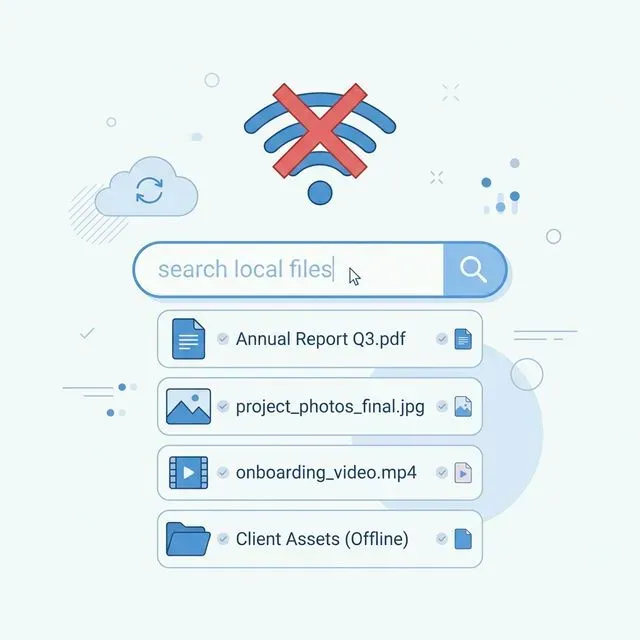
Tamsaek: Offline Cloud Search
Section titled “Tamsaek: Offline Cloud Search”Tamsaek connects to Google Drive (and OneDrive and SharePoint) and downloads files for local indexing. Once indexed, your cloud files are fully searchable offline.
This is fundamentally different from how cloud storage apps work. Instead of streaming files on-demand, Tamsaek proactively downloads and indexes your cloud files. The index lives on your computer, updated whenever you’re online, and always available for searching even when you’re not.
How It Works
Section titled “How It Works”-
Connect your account: Authorize Tamsaek to access your Google Drive using standard OAuth. Tamsaek never sees your password.
-
Initial download: Tamsaek downloads your files and indexes them. This happens in the background and can take time for large Drive accounts, but only needs to happen once.
-
Continuous sync: When you’re online, Tamsaek monitors for changes and updates its index. New files, modified files, deleted files—all reflected in the local index.
-
Offline search: When you’re offline, search works exactly the same. Queries run against the local index. Results appear instantly. You can open any file that’s been cached locally.
Content Search, Not Just Names
Section titled “Content Search, Not Just Names”Unlike Google Drive’s offline mode, which only preserves file names, Tamsaek indexes file contents. PDFs, Word documents, spreadsheets, presentations—the actual text inside these files is searchable offline.
This is crucial. When you’re trying to find a document, you often remember what’s in it, not what it’s called. “The contract with the non-compete clause” or “the spreadsheet with Q3 projections.” Content search makes these queries possible, even offline.
Natural Language Queries
Section titled “Natural Language Queries”Tamsaek’s AI-powered search works offline too. The language model runs on your device, so natural language understanding doesn’t require cloud connectivity.
Search for “meeting notes from last month about the marketing campaign” and Tamsaek understands what you mean. This works on a plane, in a cabin, anywhere—as long as you’ve synced while you had connectivity.
Privacy Preserved
Section titled “Privacy Preserved”All indexing happens on your local machine. Your cloud files are downloaded to your computer and processed locally. Tamsaek’s servers never see your files.
This is important for sensitive documents. You’re not adding another cloud service that has copies of your files—you’re creating a local index on hardware you control.
Beyond Just Offline Access
Section titled “Beyond Just Offline Access”While offline search is the headline feature, having a local index of cloud files has other benefits.
Faster Search
Section titled “Faster Search”Local search is inherently faster than cloud search. There’s no network latency, no waiting for servers. Queries return results instantly.
Unified Search
Section titled “Unified Search”Tamsaek searches local files and cloud files together. You don’t need to know where a file is stored—one search covers everything.
Consistent Experience
Section titled “Consistent Experience”Whether you’re online or offline, search works the same way. You don’t need different mental models for different connectivity states.
Set Up Once, Use Anywhere
Section titled “Set Up Once, Use Anywhere”Getting offline cloud search working takes about ten minutes:
- Download Tamsaek
- Connect your Google Drive (and/or OneDrive)
- Wait for initial indexing to complete
- You now have offline-capable cloud search
The initial download takes a while for large Drive accounts, but it runs in the background while you work. Once complete, you have full offline search capability permanently.
Download Tamsaek and never be without search again.
Related articles: