
Mac Finder Search Not Working? Here's Why and How to Fix It
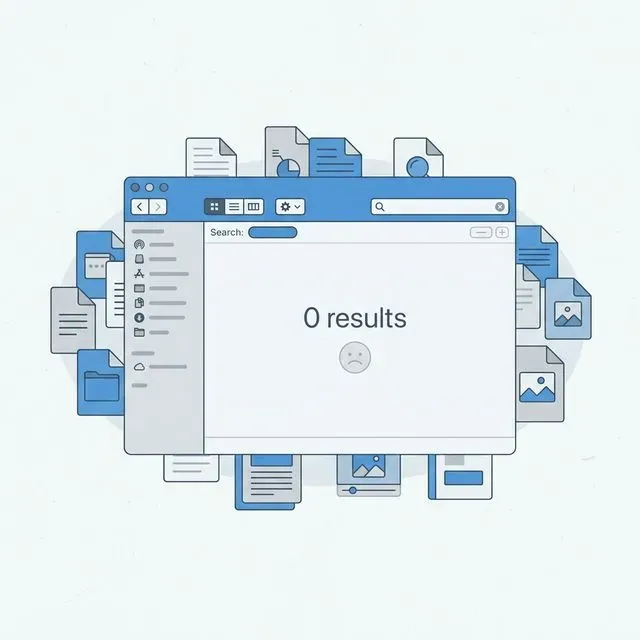
You know the file is there. You remember saving it. You can almost picture it on your screen.
But when you type the file name into Finder’s search bar, you get nothing. “No Results Found.” The spinning beach ball appears, then disappears. Still nothing.
You try again. Maybe you spelled it wrong. You try variations. You browse through the folder manually, scanning hundreds of files one by one. Eventually you give up, convinced you’ve lost it forever.
Then, a week later, you stumble across the file in exactly the folder where you thought you saved it. The name was exactly what you searched for. Finder just couldn’t find it.
If this sounds familiar, you are not alone. Mac users have been dealing with unreliable Finder search for years. The problem isn’t that you’re doing something wrong. It’s that the search system itself is fragile and prone to failure.
Why Finder Search Stops Working
Section titled “Why Finder Search Stops Working”Understanding why Finder search fails helps explain why the fixes are so temporary. The problem usually lies with Spotlight, the indexing service that powers all search on macOS.
Spotlight Index Corruption
Section titled “Spotlight Index Corruption”Behind every search you perform, Spotlight maintains an enormous database of everything on your Mac. Every file name, every word inside documents, every piece of metadata gets indexed so searches can happen quickly.
The problem is that this index can become corrupted. macOS updates, unexpected shutdowns, or even just running for months without restarting can cause the index to drift out of sync with reality. Files exist on your drive but aren’t in the index. Files that were deleted still appear in search results. The index becomes unreliable, and so does your search.
When this happens, searching for a file by name might work sometimes but not others. Content search becomes even more unreliable. PDFs and documents that definitely contain your search terms show up in some searches but not others.
Files Not Being Indexed
Section titled “Files Not Being Indexed”Spotlight doesn’t index everything. Some file types get skipped entirely or indexed incompletely. PDF files are a notorious example. You might have a PDF that contains the exact phrase you’re searching for, but Spotlight never indexed its contents. To Spotlight, it’s just a file with a name.
This happens because indexing the contents of every file type requires special parsers. Apple supports the common ones, but many formats are only indexed by filename, not by what’s inside them.
The Search Scope Problem
Section titled “The Search Scope Problem”Look at the Finder window when you search. There’s a small dropdown that probably says “This Mac” or the name of the current folder. This determines where Finder looks.
If it’s set to search only the current folder, and your file is somewhere else, you won’t find it. This sounds obvious, but it’s easy to miss. The default scope changes based on context, and many users don’t notice when it switches from “This Mac” to something more restrictive.
You might be searching inside a single folder when you think you’re searching your entire computer. No wonder the file doesn’t appear.
iCloud Drive Complications
Section titled “iCloud Drive Complications”If you use iCloud Drive, files might not actually be on your Mac. When storage gets tight, macOS moves older files to the cloud, keeping only a placeholder on your local drive.
Files stored only in iCloud don’t get indexed the same way. They might appear in searches, or they might not. It depends on whether they’ve been downloaded to your Mac recently, whether you’re connected to the internet, and other factors you can’t control.
You see the file in Finder, but it’s really just a ghost pointing to cloud storage. The search index might not know how to handle this.
Privacy Settings Blocking Indexing
Section titled “Privacy Settings Blocking Indexing”macOS lets you exclude specific folders from Spotlight indexing. This is meant for privacy, keeping sensitive documents out of search results.
But it’s easy to accidentally exclude a folder you actually want searched. Maybe you dragged something into the Privacy tab without realizing it. Maybe a previous user set up exclusions that you’re not aware of. Either way, Finder will never find files in excluded locations, no matter how many times you search.
The Fixes Everyone Tries
Section titled “The Fixes Everyone Tries”When Finder search stops working, most people try the same series of fixes. Some help temporarily. None solve the underlying problem.
Rebuilding the Spotlight Index
Section titled “Rebuilding the Spotlight Index”The nuclear option is rebuilding Spotlight’s entire index. You do this by opening Terminal and typing a command like sudo mdutil -E / or by adding and removing your hard drive from System Preferences > Siri & Spotlight > Privacy.
This forces macOS to delete the corrupted index and start over, scanning every file on your drive and rebuilding the database from scratch.
The good news: this often works. The bad news: it takes hours. Your Mac will run slowly while indexing, and you won’t have functional search during the process. Plus, the index will eventually corrupt again. You might be back where you started in a few months.
Checking System Preferences
Section titled “Checking System Preferences”You can open System Preferences > Siri & Spotlight and review what’s supposed to be indexed. This helps if you’ve accidentally excluded folders or turned off indexing for certain file types.
It’s worth checking, but it rarely fixes the problem. Most of the time, the settings are correct and the index is just broken.
Restarting Your Mac
Section titled “Restarting Your Mac”Sometimes a simple restart clears up temporary indexing issues. It’s worth trying because it’s easy and sometimes helps.
But restarts don’t fix index corruption. They might clear up minor glitches, but they won’t rebuild a broken database.
Checking the Search Scope
Section titled “Checking the Search Scope”Always glance at the search scope dropdown in Finder to make sure you’re searching “This Mac” and not just the current folder. This simple check solves more search problems than you’d expect.
Even when the scope is correct, though, the index itself might be wrong.
Why These Fixes Are Temporary
Section titled “Why These Fixes Are Temporary”The frustrating reality is that all the standard fixes are bandages on a deeper wound. You can rebuild the index, but it will corrupt again. You can check your settings, but they were probably correct to begin with. You can restart your Mac, but that only helps with temporary glitches.
The cycle becomes familiar. Search stops working. You rebuild the index. Search works for a few weeks or months. Then it breaks again. You repeat the process, losing hours of productivity and growing increasingly frustrated with your computer.
This happens because the underlying architecture of Spotlight is fragile. It’s a complex system trying to do a complex job, and complex systems fail. The index is a single point of failure, and when it fails, everything fails.
The Real Problem: Spotlight Was Never Designed for This
Section titled “The Real Problem: Spotlight Was Never Designed for This”Here’s the uncomfortable truth: Spotlight was designed as a quick launcher for applications and a basic file finder. It was never meant to be a comprehensive search solution for people with thousands of documents across multiple formats.
When Spotlight works, it’s fine. When it doesn’t, you have no real alternatives built into macOS. You’re stuck with a broken search system and no way to fix it permanently.
The core issue is that Spotlight’s index is a black box. You can’t see what’s in it. You can’t verify it’s complete. When a file doesn’t appear in search results, you don’t know if the file is missing or if the index just didn’t find it.
For important files, this uncertainty is unacceptable. You need to trust your search results, or you can’t rely on search at all.
A Search That Doesn’t Depend on Spotlight
Section titled “A Search That Doesn’t Depend on Spotlight”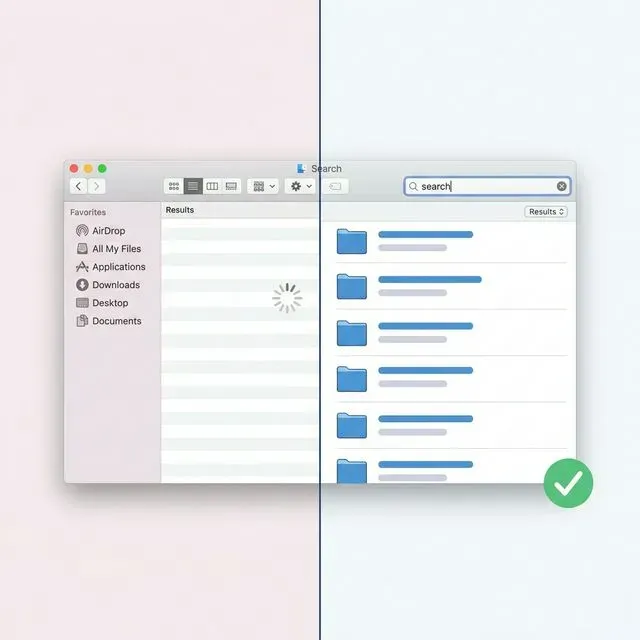 Tamsaek takes a different approach. Instead of relying on macOS’s fragile indexing system, Tamsaek builds and maintains its own search index. One that actually works.
Content Search That Finds What’s Inside
Section titled “Content Search That Finds What’s Inside”Tamsaek indexes the actual contents of your documents, not just their names. PDFs, Word documents, spreadsheets, presentations, it reads them all and makes every word searchable.
When you search for a phrase, Tamsaek looks inside your files and finds documents that contain it. This works reliably because Tamsaek controls the entire indexing process. There’s no mystery about whether a file was indexed. If it’s on your drive, it’s in the index.
No Corruption, No Rebuilding
Section titled “No Corruption, No Rebuilding”Tamsaek’s index doesn’t corrupt like Spotlight’s. The technology is different, the maintenance is continuous, and the results are trustworthy.
You don’t need to rebuild the index periodically. You don’t need to worry that files are missing from search results. When Tamsaek searches, it searches everything.
Works Across Cloud Storage
Section titled “Works Across Cloud Storage”Tamsaek doesn’t just search your local files. It also indexes Google Drive, OneDrive, and other cloud storage you’ve connected. When you search, you search everything at once. No more wondering if a file is on your Mac or in the cloud.
This matters because modern workflows spread files across multiple locations. A search that only looks at local files misses half of what you need.
Natural Language Search
Section titled “Natural Language Search”Instead of trying to guess exact file names or phrases, you can search the way you think. “That presentation about the budget from last month.” Tamsaek understands what you mean and finds relevant files.
This is especially useful when you can’t remember exactly what a file was called. Describe it in your own words, and Tamsaek finds it.
Browser History Too
Section titled “Browser History Too”Tamsaek also searches your browser history, so if you downloaded a file or viewed a document online, you can find it that way too. The search extends beyond files to everywhere your documents might be.
You Deserve Search That Works
Section titled “You Deserve Search That Works”Finder search failing isn’t a user error. It’s a system problem. Spotlight was built for a different era of computing, and it shows.
You shouldn’t have to rebuild indexes, check settings, and guess whether your files are actually missing. You should be able to search for something and find it, every time.
Tamsaek gives you that confidence. A search tool that actually finds your files, no matter what you called them or where you saved them.
Download Tamsaek and stop fighting with Finder search.
Related articles: