
How to Find Old Files on Your Computer (Even From Years Ago)
The Ghost of Files Past
Section titled “The Ghost of Files Past”You need that document from 2022. Maybe it was a tax form. Maybe a contract. Maybe photos from a trip you took three summers ago. You remember creating it. You remember saving it somewhere safe. But that was years ago, and your memory has become fuzzy around the edges.
Was it called “Tax_2022.pdf” or “2022_Taxes.pdf” or just “taxes.pdf”? Did you save it in the Documents folder, or did you create a special folder for financial stuff? Was it on this computer, or was that the laptop before this one? Did you back it up to an external drive, or upload it to Dropbox, or email it to yourself?
The more you think about it, the more possibilities branch out in front of you like paths in a maze. Every folder you check feels like a dead end. Every search term you try returns thousands of results or none at all.
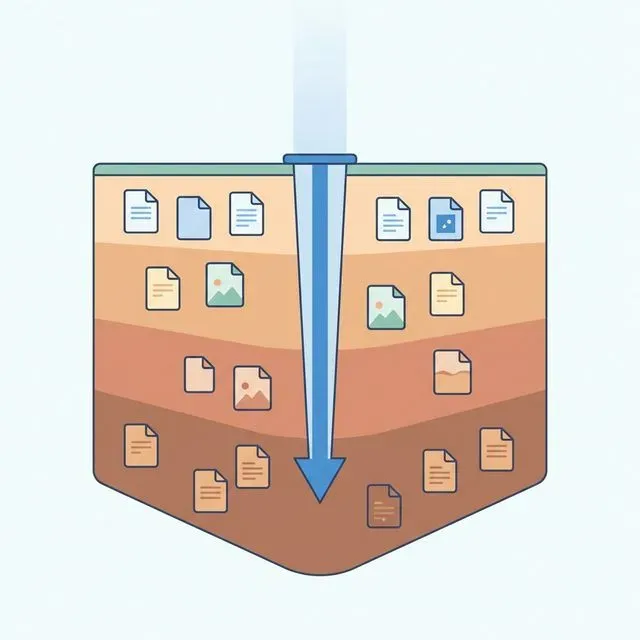
This is one of the most frustrating experiences with computers. Unlike physical filing cabinets, where you can flip through folders and at least see what’s there, digital storage hides things. Files can be buried twenty layers deep in a directory structure you designed years ago and have since forgotten. They can be on drives you no longer plug in. They can have names that made sense at the time but mean nothing to you now.
Finding old files requires detective work. And like any good detective, you need to understand why the evidence is hard to find before you can start looking.
Why Old Files Are So Hard to Find
Section titled “Why Old Files Are So Hard to Find”The human brain is not designed to remember file paths. We remember stories, faces, feelings. We remember that we were stressed when we created that budget spreadsheet. We remember the coffee shop where we reviewed that contract. We remember the general time of year, the project it was related to, the person who sent it to us.
But computers demand specifics. Exact file names. Precise folder locations. Dates in the right format. When we cannot provide these specifics, the computer shrugs and shows us nothing.
The Memory Problem
Section titled “The Memory Problem”Time erodes details. A file you saved six months ago might still have a clear place in your memory. But after two years? Three? The mental connections dissolve. You might remember it was related to the Hartman project, but did you file it under Hartman, under 2021 Projects, under Clients, or under some other system entirely?
We also change. The organizational system that made sense to you in 2020 might feel completely foreign now. Maybe you went through a phase of meticulous folder hierarchies. Maybe you were in a rush and saved everything to the desktop. Maybe you were experimenting with a new cloud storage service and moved things there.
Your past self made decisions that your present self cannot understand.
The Migration Problem
Section titled “The Migration Problem”Computers change. You upgrade your operating system. You buy a new laptop. You migrate files from old machines to new ones. And somewhere in these transitions, things get lost or reorganized.
Migration tools try to be helpful. They might consolidate folders with the same name. They might move everything into a single “Old Computer” directory to keep it safe. They might change file formats to be compatible with new software. Each of these helpful actions buries your files a little deeper.
That document you are looking for might have been in a folder called “Work” on your old machine. After migration, it could be in “Backup 2021 > Users > Your Name > Documents > Work > Archive.” No wonder you cannot find it.
The Backup Problem
Section titled “The Backup Problem”Smart people keep backups. We copy files to external drives. We burn them to discs. We upload them to cloud storage as insurance against hard drive failure. But backups are often created in moments of panic or haste, without careful organization.
Your old external drive might be labeled “Backup” with a date. When you plug it in, you find folder after folder with names like “Stuff,” “Old Files,” “Temp,” “Miscellaneous.” Inside those folders are more folders. The file you need is probably in there somewhere, but finding it means opening every folder, checking every subfolder, hoping you recognize something.
The Naming Problem
Section titled “The Naming Problem”Past-you was optimistic. Past-you believed that “Document1.docx” and “spreadsheet_final.xlsx” and “Untitled.pdf” were sufficient names. Past-you believed that “Final_Final_v2” was a clear version indicator. Past-you did not anticipate that future-you would have no idea what any of these files contain.
Generic names are like camouflage. They hide files in plain sight. When you search your computer, you cannot search for content you do not remember. And if the file name gives no clues, that file might as well be invisible.
The Location Problem
Section titled “The Location Problem”Files end up in strange places. The download folder that accumulated thousands of files over the years. The email attachments folder you forgot existed. The cloud storage sync folder that only downloads files when you click them. The temporary directory where that one program saved everything by default.
You might look in your Documents folder fifty times and never realize the file is actually in an obscure app data folder or a hidden system directory or a cloud storage cache.
Techniques That Actually Help
Section titled “Techniques That Actually Help”Despite these challenges, there are methods that improve your odds of finding what you need. They require patience, but they work more often than random clicking.
Use Date-Based Searching
Section titled “Use Date-Based Searching”Most operating systems let you search by file creation date or modification date. If you know roughly when you worked on a file, this can narrow things down dramatically.
On Windows, you can open File Explorer and use the search box with date operators like “datemodified:2022.” On Mac, Finder has similar options under the search filters. Even a broad range like “sometime in 2022” can eliminate thousands of irrelevant results.
The trick is remembering when you worked on something. If you know it was for a tax return, you might guess spring. If it was a summer project, you can narrow to those months. Even ballpark dates help.
Search by File Type
Section titled “Search by File Type”If you know you are looking for a PDF, or a spreadsheet, or a photo, use that in your search. Most systems let you filter by file extension. Searching for “*.pdf” with a date range shows you all PDFs from that period. Suddenly you are looking at dozens of files instead of thousands.
This works best when combined with other clues. PDFs from 2022 related to the Hartman project is a much more manageable search than just searching for “Hartman.”
Check Your Old Backups
Section titled “Check Your Old Backups”Those dusty external drives and old cloud storage accounts are worth investigating. Connect the drive. Browse the folders. Look for date ranges that match when you might have created the file.
If you use Time Machine on Mac or File History on Windows, you can browse snapshots from specific dates. This lets you see what your files looked like in the past, even if things have moved or changed since then.
For cloud storage, check not just your main sync folder but also any archives, trash folders, or previous versions. Dropbox, Google Drive, and OneDrive all keep deleted files for some period of time. The file might be in trash, waiting to be restored.
Search Your Email
Section titled “Search Your Email”Many files travel through email. You might have sent the document to someone, or received it from someone, or emailed it to yourself as a backup.
Use your email search with date ranges. Try searching for file extensions like “pdf” or “docx” along with keywords you remember. Check your sent folder as well as your inbox. Check any email accounts you used during that period, even if you do not use them anymore.
Think About the Context
Section titled “Think About the Context”Sometimes the best search tool is your own memory, used carefully. Close your eyes. Think about the time period. Where were you? What were you working on? What software were you using?
If you remember working on the file in Microsoft Word, it is probably a docx file. If it was a contract, maybe look in folders related to legal or clients. If it was a photo, check your Pictures folder and any photo management software you use.
Context clues narrow the search space in ways that file names cannot.
Why Date and Content Together Matter
Section titled “Why Date and Content Together Matter”Searching by date alone gives you everything from that period. Searching by keyword alone gives you every file mentioning that word. But combining them, or better yet, searching by content with date awareness, is where real power lies.
The problem is that most built-in search tools treat these separately. You can filter by date, or you can search by text, but doing both intelligently requires more sophisticated tools.
And then there is the content problem. If you remember a specific phrase from a document, searching for that phrase should find the document. But standard search often looks only at file names and basic metadata. It does not look inside files unless you have specific content indexing enabled, and even then, it might not work for all file types.
Imagine being able to say “find that budget document from early 2022 where I mentioned the Hartman project numbers.” That kind of natural, contextual search is exactly what we need but rarely what we have.
A Better Way to Search Your Past
Section titled “A Better Way to Search Your Past”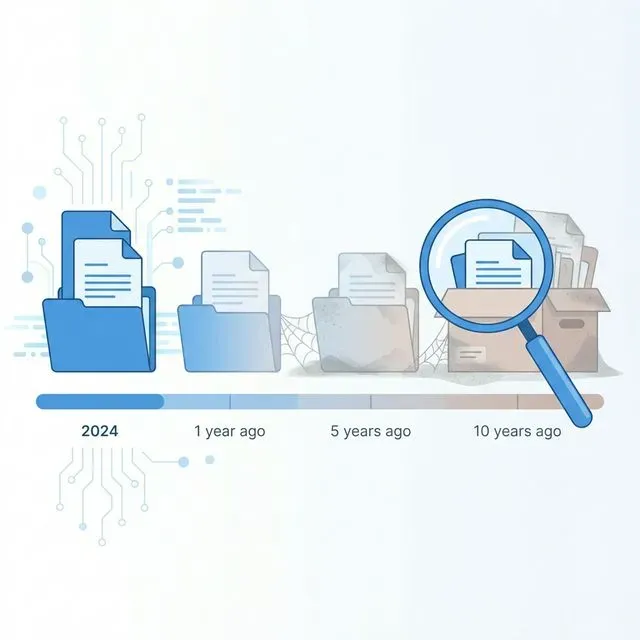 Tamsaek was built for exactly these situations. It approaches file search differently, combining natural language understanding with deep content indexing to help you find files even when your memory is incomplete.
Describe What You Remember
Section titled “Describe What You Remember”Instead of typing exact file names, you can search the way you think. “The budget report from 2022.” “Photos from my sister’s wedding.” “That contract with the Hartman clause.”
Tamsaek understands these descriptions. It combines the keywords you remember with date awareness to find files that match the spirit of your search, not just the literal text.
Search Inside Files
Section titled “Search Inside Files”Tamsaek indexes the full contents of your documents. This means you can search for words, phrases, numbers, or even concepts that appear inside files, not just in their names.
That file called “Document1.docx” that contains your 2022 budget notes? You can find it by searching for “budget” or “2022” or “Hartman.” Tamsaek reads through the document and sees what is inside, even when the file name is meaningless.
This applies to PDFs, Word documents, spreadsheets, presentations, and many other formats. Even scanned documents become searchable through text recognition.
Search Across Time and Space
Section titled “Search Across Time and Space”Tamsaek does not limit you to one location. It can search across your local hard drive, external drives, cloud storage accounts, and email archives all at once.
Looking for a file that might have been in Dropbox, or might have been on an old laptop, or might have been attached to an email? One search covers all of these. You do not need to check each location separately.
Date Intelligence
Section titled “Date Intelligence”Tamsaek understands dates in context. When you mention “2022,” it knows you mean files from that time period. When you say “last summer,” it interprets that relative to today. When you reference “the Hartman project from March,” it combines the project name with the time constraint.
This date awareness is built into the search. You do not need to manually set date filters or remember exact creation dates. Just describe what you remember, and Tamsaek connects the dots.
Your Private Search Index
Section titled “Your Private Search Index”All of this indexing happens on your computer. Tamsaek builds a local index of your files so searches are fast and private. Your document contents are not uploaded to remote servers for indexing. They stay on your machine, searchable by you alone.
This matters when you are searching through years of personal documents, financial records, or sensitive files. You get the power of advanced search without giving up control of your data.
Finding What You Thought Was Lost
Section titled “Finding What You Thought Was Lost”The files from your past are not really gone. They are just hidden, buried under layers of folder structures, generic file names, and faded memories. With the right approach, you can find them.
Start with what you remember. Use dates to narrow the scope. Check the obvious places, then the less obvious ones. Look in backups and email and cloud storage. Be systematic.
But if you find yourself doing this often, if you are constantly hunting for files from months or years ago, consider whether your search tools are working for you or against you. The built-in search on your computer has limitations. It expects you to remember exact details that time has erased.
A tool that understands natural descriptions, that searches inside files, that connects dates with content, changes the game. You can stop trying to remember file names and start simply describing what you need. The computer does the detective work for you.