
Can't Search Inside PDF Files? Here's the Fix

The PDF sits somewhere on your hard drive. You’re certain of this. You remember the document clearly—maybe it was a contract with specific terms, a research paper with a key finding, or a manual with troubleshooting steps you need right now. You remember a distinctive phrase from the document. You type it into Spotlight or Windows Search, confident that the file will appear.
Nothing.
You try a different phrase. You try the document title, or what you think the title might be. You try variations, partial words, different capitalizations. Nothing, nothing, nothing.
The PDF exists. You would stake money on it. But your computer seems utterly incapable of finding it.
This scenario plays out millions of times a day, on Macs and PCs around the world. PDF search is broken, and it has been for as long as most of us can remember.
Why PDF Search Fails So Badly
Section titled “Why PDF Search Fails So Badly”To understand why PDF search is such a mess, you need to understand what PDFs actually are—and it’s not as straightforward as you might think.
PDFs Are Not Simple Text Files
Section titled “PDFs Are Not Simple Text Files”When you create a Word document, the text you type is stored in a structured way that’s relatively easy for search tools to read. There’s a clear relationship between what you see on screen and what’s saved in the file.
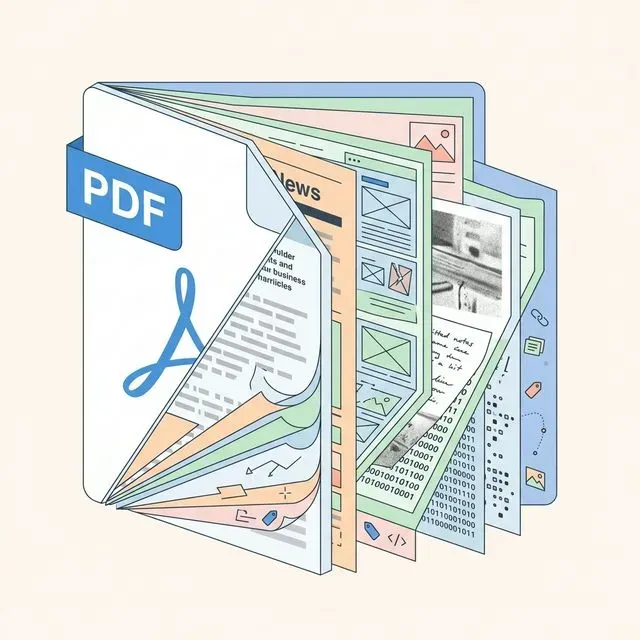
PDFs are fundamentally different. The PDF format was designed to preserve the exact appearance of a document across different computers and printers. It’s essentially a container for a precise visual layout, and text is just one element of that layout.
Inside a PDF, text might be stored as actual characters, or it might be stored as outlines of shapes that happen to look like letters. Text can be embedded in multiple layers, split across different streams, or encoded in ways that vary from one PDF to another.
This complexity is intentional—it’s what allows PDFs to look identical everywhere—but it makes text extraction surprisingly difficult.
The Scanned Document Problem
Section titled “The Scanned Document Problem”A significant percentage of PDFs aren’t text documents at all. They’re images.
When someone scans a paper document and saves it as a PDF, the result is essentially a photograph. There’s no text to search, just pixels arranged in patterns that humans recognize as letters. To make these PDFs searchable, you need Optical Character Recognition (OCR)—software that “reads” the image and converts it to actual text.
Neither Spotlight nor Windows Search performs OCR by default. A scanned PDF is completely invisible to search, no matter how many times you search for text that’s clearly visible in the document.
Some scanning software adds an invisible OCR layer to PDFs it creates, making them searchable. But this is inconsistent. PDFs from scanners, email attachments, downloaded documents—you never know if they’re searchable until you try.
Operating System Indexing Is Superficial
Section titled “Operating System Indexing Is Superficial”Even for PDFs with proper embedded text, built-in search tools often fail because their indexing is superficial.
Spotlight on Mac uses a component called the PDF importer to extract text. This importer works fine for simple PDFs but struggles with complex documents. Multi-column layouts, text boxes, layered content, PDF forms, embedded images with text—any of these can cause the importer to miss content or produce garbled text.
Apple has fixed bugs in the PDF importer over the years, but each macOS update seems to introduce new issues. Files that were searchable under one version of macOS might become unsearchable after an upgrade.
Windows Search has analogous problems. Microsoft’s PDF iFilter (the component that extracts text from PDFs) is reasonably good, but it’s not installed by default. Without it, Windows can only search PDF file names, not contents. And even with the iFilter installed, complex PDFs often aren’t indexed properly.
Index Corruption and Staleness
Section titled “Index Corruption and Staleness”Both Spotlight and Windows Search maintain indexes of your files to make search fast. When these indexes become corrupted or outdated, search fails.
Index corruption happens more often than you might expect. Operating system updates, disk errors, running out of space during indexing, abrupt shutdowns—many things can leave the index in a bad state. When this happens, files that definitely exist don’t appear in search results.
Index staleness is a different problem. The search index might not have caught up with recent files or modifications. You save a PDF, search for it immediately, and it’s not found—because the indexer hasn’t gotten to it yet.
Rebuilding the index is the standard fix for both problems, but it’s time-consuming (often taking hours) and doesn’t always work. Some users report needing to rebuild multiple times, or finding that certain files never become searchable no matter what they try.
The Workarounds People Try
Section titled “The Workarounds People Try”Faced with unreliable PDF search, people develop coping strategies. These range from moderately effective to completely futile.
Opening PDFs One by One
Section titled “Opening PDFs One by One”The most reliable way to find text in a PDF is to open the file and use Ctrl+F (or Cmd+F). This works perfectly—if you know which file to open.
When you have hundreds or thousands of PDFs, opening each one until you find the right document is not practical. Even if you have some idea which folder to look in, you might need to check dozens of files before finding the one you need.
This is the approach people use when they’ve given up on everything else. It works, technically, but it’s the computing equivalent of looking for a needle in a haystack by picking up each piece of hay.
Rebuilding the Spotlight Index
Section titled “Rebuilding the Spotlight Index”The standard troubleshooting step for Spotlight problems is to rebuild the index. On Mac, you can do this through System Preferences or with a Terminal command:
sudo mdutil -E /This forces Spotlight to re-index your entire drive. Depending on how many files you have and how fast your disk is, this can take several hours. During that time, search results will be incomplete or missing.
Sometimes rebuilding fixes PDF search problems. Sometimes it doesn’t. And even when it works, the fix might be temporary—a future update or file change can break things again.
Installing Adobe’s iFilter (Windows)
Section titled “Installing Adobe’s iFilter (Windows)”Windows users can install Adobe’s PDF iFilter to enable PDF content search:
- Download the iFilter from Adobe’s website
- Install it and restart your computer
- Rebuild the Windows Search index
This process improves PDF search on Windows, but it’s not foolproof. The iFilter can fail to register properly, stop working after Windows updates, or simply not extract text from certain PDFs. It’s also another component to maintain—when problems occur, you have to figure out whether the issue is with Windows Search, the iFilter, or something else.
Converting PDFs to Other Formats
Section titled “Converting PDFs to Other Formats”Some people convert PDFs to plain text or Word documents, under the theory that these formats are more searchable. This might work for individual documents, but it’s not a scalable solution.
Converting thousands of PDFs is a massive undertaking. The conversion process often produces poor results—formatting is lost, images disappear, and text can come out garbled. You end up with two copies of every document, doubling your storage needs and creating confusion about which version is current.
Third-Party PDF Managers
Section titled “Third-Party PDF Managers”Various PDF management tools promise better search capabilities. Some of them deliver, within their own databases. But they create yet another silo—your PDFs are searchable within the tool, but not from Spotlight or Windows Search.
These tools also require you to import PDFs into their libraries, organize them, keep the library updated, and learn a new interface. For people who just want their operating system’s search to work, adding another application isn’t an attractive solution.
What Real PDF Search Requires
Section titled “What Real PDF Search Requires”A tool that properly searches PDFs needs several capabilities that built-in search lacks.
Robust Text Extraction
Section titled “Robust Text Extraction”The tool needs to handle the full complexity of PDF encoding. This means parsing the PDF structure properly, extracting text from all the places it might be hiding, and handling edge cases that trip up simpler extractors.
This isn’t trivial engineering. The PDF specification is hundreds of pages long, and real-world PDFs often deviate from the specification in various ways. Good text extraction requires handling both conforming and non-conforming PDFs.
OCR for Scanned Documents
Section titled “OCR for Scanned Documents”For scanned PDFs and PDFs with embedded images containing text, the tool needs OCR capability. Modern OCR is quite good—it can handle a variety of fonts, orientations, and image qualities—but it needs to be integrated into the search indexing workflow.
OCR should happen automatically when a PDF is added to the index. Users shouldn’t need to manually run OCR on individual files or decide which files need it.
Reliable Indexing
Section titled “Reliable Indexing”The search index needs to stay accurate and up-to-date. This means detecting when files are added, modified, or deleted, and updating the index accordingly. It means handling errors gracefully without corrupting the entire index. It means completing indexing in a reasonable time without consuming excessive system resources.
Built-in search tools have struggled with all of these requirements for years. A dedicated search tool can be designed with reliable indexing as a priority.
When you search for something, results should appear immediately. This requires a well-designed index structure and efficient query processing. Users shouldn’t have to wait while the search tool scans through files or rebuilds its index.
Tamsaek: PDF Search That Works
Section titled “Tamsaek: PDF Search That Works”Tamsaek was built specifically to solve the document search problems that Spotlight and Windows Search cannot handle.
Deep PDF Text Extraction
Section titled “Deep PDF Text Extraction”Tamsaek uses a robust PDF parsing library that handles the full complexity of real-world PDFs. Multi-column layouts, text boxes, layered content, PDF forms—Tamsaek extracts text from all of them.
The extraction is thorough. Tamsaek doesn’t just grab the obvious text; it follows the document structure to find text wherever it’s hiding. The result is comprehensive indexing that finds content Spotlight and Windows Search miss.
Intelligent Handling of Document Structure
Section titled “Intelligent Handling of Document Structure”Beyond just extracting raw text, Tamsaek understands document structure. It can differentiate headers from body text, identify sections, and provide context for search results. When you find a match, you’ll understand where in the document it appears.
Instant Search Results
Section titled “Instant Search Results”Tamsaek pre-indexes your documents so that searches are instantaneous. There’s no waiting for indexing to complete or for the search to scan through files. Type your query, see results immediately.
The index stays updated automatically. When you add, modify, or delete PDFs, Tamsaek updates its index in real time. No manual rebuilding required.
Natural Language Queries
Section titled “Natural Language Queries”Instead of searching for exact phrases, you can describe what you’re looking for: “the contract from last year about licensing terms” or “research paper on machine learning accuracy.” Tamsaek’s AI understands your intent and finds relevant documents even if your query doesn’t exactly match the text.
Works Across All Your Documents
Section titled “Works Across All Your Documents”PDF search is just one part of Tamsaek’s capabilities. Word documents, Excel spreadsheets, PowerPoints, plain text, cloud storage, browser history—Tamsaek searches all of them together. You don’t need to know what format your information is in or where it’s stored.
Privacy Preserved
Section titled “Privacy Preserved”All processing happens locally on your computer. Your PDFs are not uploaded to any server. The search index is stored on your machine. Tamsaek never sees your documents—it’s designed so that’s technically impossible.
Stop Fighting Your Search Tool
Section titled “Stop Fighting Your Search Tool”The frustration of PDF search failure is so common that most people have just accepted it. They’ve lowered their expectations, adapted their workflows, and resigned themselves to not being able to find their own documents.
This doesn’t have to be normal. Your PDFs contain valuable information. You should be able to find it.
Download Tamsaek and finally have PDF search that works.
Related articles: