
Where Did That Email Attachment Go? How to Find Lost Downloads

Someone sent you a file months ago. You downloaded it, opened it, and then… what? Where did it go?
You know you have it somewhere. You downloaded it. You probably looked at it. But now that you need it again, you can’t find it. The Downloads folder has 500 items in it. Your Documents folder is a maze. You’ve checked every place you can think of.
This is one of the most common file-finding frustrations. Email attachments and downloaded files have a way of vanishing into the depths of your computer, resurfacing only by accident—if ever.
The problem isn’t that the file is gone. It’s almost certainly still there. The problem is that downloaded files follow their own logic about where they end up, and that logic rarely matches how you’ll think about finding them later.
Why Downloads Get Lost
Section titled “Why Downloads Get Lost”Understanding why attachments become unfindable helps explain the solutions.
The Downloads Folder Black Hole
Section titled “The Downloads Folder Black Hole”Most browsers and email clients download files to a folder called “Downloads.” This seems reasonable until you realize what it means in practice.
Every PDF you download, every attachment you open, every image you save—they all go to the same folder. After a few months of normal computer use, the Downloads folder contains hundreds of files with no organization whatsoever.
Finding a specific download means scrolling through a massive list, trying to recognize the file by name. But you often don’t remember the name. “Report.pdf” or “document.docx” or “attachment-1.pdf”—senders name files generically, and you save them without renaming.
Multiple Download Locations
Section titled “Multiple Download Locations”Sometimes downloads don’t even go to the Downloads folder. Email clients have their own attachment folders. Some applications save to specific directories. You might have configured certain browsers to ask where to save files, leading to inconsistent locations.
A file might be in ~/Downloads, or ~/Documents, or ~/Desktop, or buried in ~/Library/Mail Downloads, or in an application-specific folder. Without checking all these places, you can’t be sure you’ve looked everywhere.
Accidental Moves and Renames
Section titled “Accidental Moves and Renames”Sometimes you do organize downloads—moving them to appropriate folders, renaming them sensibly. This is good practice but creates a new problem: the file is no longer where you originally put it or named what it was originally called.
You might have organized a download into a project folder months ago. Now you’re searching the Downloads folder and not finding it, because past-you was diligent about organization.
Time Decay
Section titled “Time Decay”The longer ago you downloaded something, the harder it is to find. Your mental context fades. What seemed obvious at the time becomes mysterious later.
You might not remember when you downloaded the file, making date-based search less useful. You might not remember what it was called, making name search useless. You might not remember the exact content, making content search hit-or-miss.
The Search Challenges
Section titled “The Search Challenges”Finding old downloads has specific challenges that make standard search less effective.
Generic File Names
Section titled “Generic File Names”Email attachments often have generic names. “Invoice.pdf” from one sender looks the same as “Invoice.pdf” from another. “Report_Final.docx” could be any of a dozen files.
Searching for these generic names produces many results, and you have to check each one to find the right file. This is time-consuming and error-prone.
Unknown Content
Section titled “Unknown Content”Sometimes you remember that someone sent you something, but you don’t remember what was in it. “There was an attachment about the project” doesn’t give you search terms.
Content search requires you to know what’s in the document. For half-remembered attachments, you might not have useful keywords.
Sender Information Not in File
Section titled “Sender Information Not in File”You often remember who sent an attachment, not what it contained. “The PDF from Sarah” or “the spreadsheet John attached.”
But the sender’s name isn’t in the file. It’s in the email, not the attachment. Standard file search has no way to connect files to their email context.
Multiple Versions
Section titled “Multiple Versions”For files that went back and forth—edited versions, revised documents, multiple drafts—you might have several copies. Finding the right version adds another layer of difficulty.
“I need the final version, not one of the intermediate ones.” But they might all have similar names and content.
Traditional Workarounds
Section titled “Traditional Workarounds”People develop various strategies for dealing with lost downloads.
Search Email Instead
Section titled “Search Email Instead”If you can’t find the file, search your email for the message that contained it. Find the email, re-download the attachment. This works when you remember enough about the email to find it.
The downside is that you’re downloading another copy, which adds to the Downloads folder clutter. And email search isn’t always reliable either—finding an email from months ago can be its own challenge.
Browse Downloads by Date
Section titled “Browse Downloads by Date”If you remember roughly when you downloaded the file, you can sort the Downloads folder by date and look for files from that time period.
This helps narrow down the list but still requires recognizing the file when you see it. If the name is generic, you might need to open several files to find the right one.
Use Spotlight/Windows Search
Section titled “Use Spotlight/Windows Search”System search can help if you remember something distinctive about the content. But as we’ve discussed elsewhere, these tools have reliability issues. They might not find the file even if it exists.
For downloaded files specifically, the reliability problems are compounded. Downloads often have format issues, unusual encodings, or other quirks that cause indexing to fail.
Check All the Usual Places
Section titled “Check All the Usual Places”When you can’t find something, you might manually check all the places downloads could be: Downloads, Documents, Desktop, Mail attachments folder, application-specific folders.
This is tedious and easy to do incompletely. You might miss a location you forgot about.
A Better Approach
Section titled “A Better Approach”The fundamental problem is that downloads are scattered and poorly indexed. The solution is comprehensive indexing that covers all the places files might be, with reliable content search that actually finds what you’re looking for.
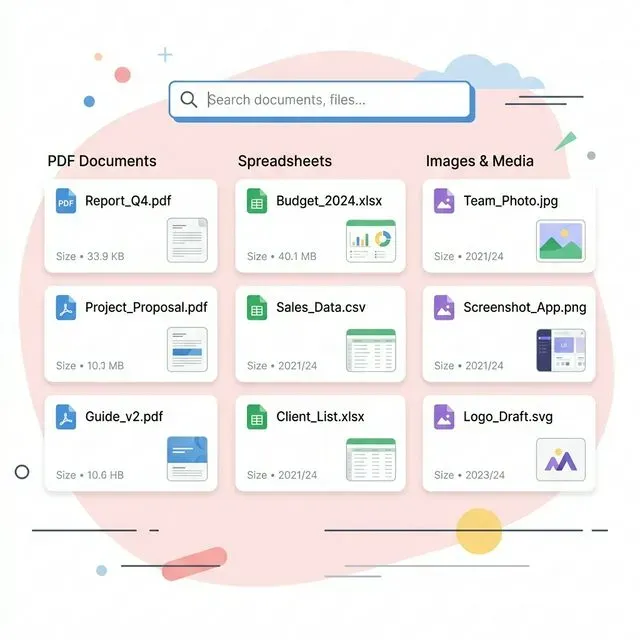
Tamsaek: Find Any Download
Section titled “Tamsaek: Find Any Download”Tamsaek indexes all your files—including all the places downloads might hide—and makes them searchable by content, date, and natural language queries.
Comprehensive Coverage
Section titled “Comprehensive Coverage”Tamsaek indexes:
- Your Downloads folder
- Your Documents folder
- Your Desktop
- Any other folders you configure
All these locations are searched together. You don’t have to guess where a file might be; Tamsaek searches everywhere.
Reliable Content Search
Section titled “Reliable Content Search”When you remember something about the content—a phrase, a topic, a name—Tamsaek finds it. Unlike system search, Tamsaek’s text extraction is robust. PDFs, Office documents, and other common download formats are indexed properly.
Search for “invoice from Acme Corp” and find it, even if the file is named “attachment-1.pdf” buried in Downloads.
Date-Based Finding
Section titled “Date-Based Finding”When you remember when you downloaded something, filter by date:
“PDFs from last month” “Documents I downloaded this week” “Files from November”
Combine date filters with content for precision: “invoice from last quarter about consulting services.”
Natural Language Queries
Section titled “Natural Language Queries”Describe what you’re looking for naturally:
“The budget spreadsheet someone sent me” “That PDF with the contract terms” “The presentation about the new product”
Tamsaek’s AI understands what you’re looking for and finds relevant files, even when your description is vague.
Search Browser History Too
Section titled “Search Browser History Too”Sometimes you downloaded something from a website, not an email. The file is somewhere on your computer, but you also remember visiting the site.
Tamsaek indexes your browser history alongside your files. You might find the download by searching for the website where you got it.
Cloud Downloads
Section titled “Cloud Downloads”Files you download to Google Drive or OneDrive are also searchable. “The document Sarah shared with me last month” might be in your cloud storage—Tamsaek searches there too.
Stop Losing Downloads
Section titled “Stop Losing Downloads”Downloaded files represent real value—documents people sent you, resources you found useful, information you needed to keep. Losing track of them wastes time and sometimes means losing the information entirely.
With proper search infrastructure, every download is findable. The file you need is somewhere on your computer, and you should be able to find it.
Download Tamsaek and never lose a download again.
Related articles: