
How to Search Inside Files (Not Just File Names)

You know the document exists. You even remember a distinctive phrase from it—something unusual enough that it couldn’t possibly match any other file. You type the phrase into Spotlight or Windows Search, hit enter, and get zero results.
The file is there. The phrase is in it. But your computer can’t find it.
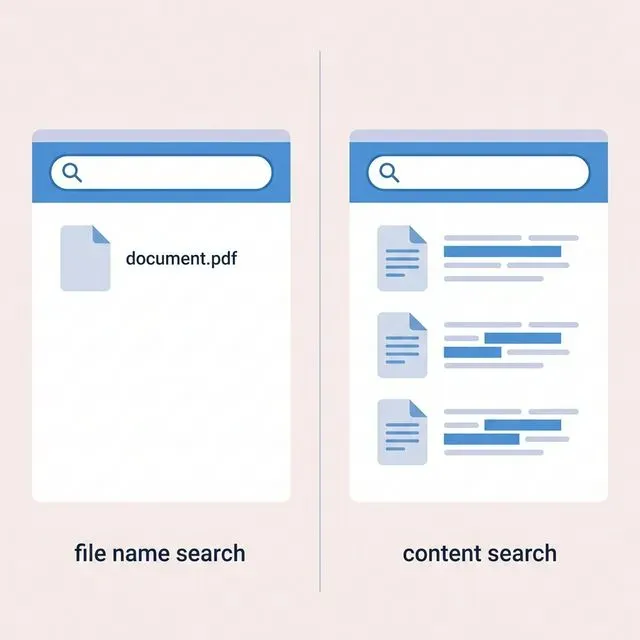
This is the fundamental limitation of most file search: it only searches file names, not file contents. The stuff inside your documents—the actual information you’re looking for—is invisible to search.
For decades, operating system vendors have promised content search. Spotlight claims to search document contents. Windows Search has content indexing options. Yet in practice, searching inside files remains frustratingly unreliable.
Let’s understand why content search is so difficult, why the built-in tools fail, and how to actually search your file contents reliably.
The Content Search Problem
Section titled “The Content Search Problem”Searching file names is easy. File names are short strings stored in the file system. Any search tool can scan through file names quickly and find matches.
Searching file contents is fundamentally harder.
Files Are Not Plain Text
Section titled “Files Are Not Plain Text”Modern documents are complex data structures. A Word document isn’t a text file—it’s a ZIP archive containing XML files, media, and metadata. A PDF might contain text, or it might contain images of text, or both, in various encodings and compressions.
To search inside a document, you first need to extract the text. This requires understanding the file format, parsing its structure, and extracting the human-readable content while ignoring markup, formatting codes, and binary data.
Every file format is different. Word uses one structure, Excel another, PDF yet another. Even within a single format, there are variations—different PDF producers create files with different internal structures.
Reliable text extraction requires handling all these formats correctly, including edge cases, malformed files, and older format versions. This is much harder than it sounds.
Storage and Indexing
Section titled “Storage and Indexing”Once you’ve extracted text, you need to store it efficiently and make it searchable. For instant search across thousands of documents, you need an inverted index—a data structure that maps words to the documents containing them.
Building and maintaining this index takes resources. Every file needs to be processed when it’s created or modified. The index needs to be compact enough to fit in available storage and fast enough to query instantly.
Operating systems have to balance search quality against resource consumption. Users don’t want their computers slowed down by indexing, so the indexer runs at low priority and may fall behind, leaving recent files unsearchable.
Keeping the Index Current
Section titled “Keeping the Index Current”Files change constantly. New files are created, existing files are modified, files are moved and deleted. The search index needs to reflect these changes.
Monitoring file changes, processing updated files, and updating the index is an ongoing background task. If this task falls behind, search results become stale or incomplete.
File systems don’t always notify applications about changes reliably. Networked drives, external storage, and cloud-synced folders can be particularly problematic—file changes might not trigger the indexing process.
Why Built-In Search Fails
Section titled “Why Built-In Search Fails”Given these challenges, it’s not surprising that built-in search tools struggle. But the specific ways they fail are worth understanding.
Spotlight’s Content Indexing
Section titled “Spotlight’s Content Indexing”Spotlight does attempt to index file contents. It has components called “importers” that extract text from various file types—PDF, Office documents, plain text, and more.
The problem is that these importers are inconsistent. They work perfectly for some files and fail silently for others. Complex PDFs with unusual encodings, Office documents with embedded objects, files created by non-standard applications—all of these can cause extraction to fail.
When extraction fails, Spotlight doesn’t tell you. The file simply doesn’t appear in search results. You have no way of knowing whether the file doesn’t exist or whether Spotlight just failed to index it.
Spotlight’s index also becomes corrupted fairly regularly, especially after macOS updates. Searches that worked before suddenly fail. The standard advice is to rebuild the index, which takes hours and sometimes doesn’t help.
Windows Search Content Indexing
Section titled “Windows Search Content Indexing”Windows Search can index file contents, but this requires additional components called iFilters. Each file type needs its own iFilter—there’s one for PDFs, one for Office documents, one for various other formats.
Microsoft Office installs iFilters for Office formats. For PDFs, you typically need to install Adobe’s iFilter or a third-party alternative. For less common formats, iFilters may not exist.
Even when iFilters are installed, content indexing isn’t enabled by default for all locations. You need to configure which folders to index and enable “Index Properties and File Contents” for each location. Many users have content indexing disabled without realizing it.
The Windows Search indexer is also resource-intensive and unreliable. It can fall behind, get stuck, or produce incomplete results. Many IT administrators simply disable it because it causes more problems than it solves.
The Silent Failure Mode
Section titled “The Silent Failure Mode”The worst aspect of both Spotlight and Windows Search is silent failure. When content search doesn’t work, you don’t get an error message—you just get no results.
This makes troubleshooting nearly impossible. Is the file not there? Is the content not indexed? Is the index corrupted? Is the query wrong? You have no way of knowing without extensive investigation.
Silent failure also erodes trust. After enough false negatives, users stop trusting search results. They develop backup strategies—browsing folders, checking multiple locations, asking colleagues—because they can’t rely on search to find things that exist.
What Reliable Content Search Requires
Section titled “What Reliable Content Search Requires”A truly reliable content search solution needs several things that built-in tools lack.
Robust Text Extraction
Section titled “Robust Text Extraction”The tool needs to properly extract text from all common document formats. This means thorough PDF parsing that handles various encodings and structures. It means complete Office document extraction including comments, headers, and embedded content. It means graceful handling of malformed files and edge cases.
This is non-trivial engineering. Getting it right requires investment in parsing libraries and extensive testing across real-world documents.
Reliable Indexing
Section titled “Reliable Indexing”The index needs to stay consistent and current. This means atomic updates that don’t corrupt the index if interrupted. It means real-time file monitoring that catches changes as they happen. It means robust recovery from any error condition.
The index should never need manual rebuilding. If users have to think about index health, the tool has failed.
Transparency
Section titled “Transparency”When something goes wrong, the tool should tell you. If a file can’t be indexed, you should know. If the index falls behind, you should see it. Transparency enables troubleshooting and maintains trust.
Cross-Format Consistency
Section titled “Cross-Format Consistency”The search experience should be consistent regardless of file type. Searching PDFs and Word documents and Excel spreadsheets should all work the same way. Users shouldn’t need to know or care about the underlying format.
Tamsaek: Content Search That Works
Section titled “Tamsaek: Content Search That Works”Tamsaek was built specifically to provide reliable content search.
Deep Format Support
Section titled “Deep Format Support”Tamsaek extracts text from documents properly:
PDFs: Full text extraction including complex layouts, multiple columns, and various text encodings. Tamsaek handles the PDF complexity that trips up Spotlight and Windows Search.
Office Documents: Complete extraction from Word, Excel, and PowerPoint including body text, comments, headers, footers, and embedded content. Both modern formats (DOCX/XLSX/PPTX) and older formats (DOC/XLS/PPT) are supported.
EPUB: Full text extraction from e-books, which Spotlight and Windows Search often ignore entirely.
Plain Text: Text files, code files, markdown, and other plain text formats are indexed completely.
Automatic, Reliable Indexing
Section titled “Automatic, Reliable Indexing”Tamsaek monitors your configured folders for changes and updates its index in real time. New files are indexed immediately. Modified files are re-indexed automatically. There’s no manual rebuilding, no falling behind, no index corruption.
The indexing process is efficient and runs in the background without noticeably impacting system performance. You can continue working normally while Tamsaek keeps its index current.
Instant Results
Section titled “Instant Results”Because the index is maintained proactively, searches return results instantly. There’s no waiting for indexing to complete or for queries to process. Type your query, see results.
Natural Language Understanding
Section titled “Natural Language Understanding”Beyond keyword matching, Tamsaek understands what you’re looking for. Search for “quarterly budget projections” and find documents about budget projections from quarters, even if they don’t contain that exact phrase.
This AI-powered understanding runs locally on your device—no cloud processing, no privacy concerns.
Beyond Local Files
Section titled “Beyond Local Files”Tamsaek also searches cloud storage (Google Drive, OneDrive) and browser history alongside your local files. Content search extends to all these sources, providing truly comprehensive search across all your information.
Search What’s Actually in Your Files
Section titled “Search What’s Actually in Your Files”You shouldn’t need to remember file names. The information you’re looking for is inside your documents, and that’s what you should be able to search.
Download Tamsaek and experience content search that actually works.
Related articles: