
Everything vs Spotlight vs Windows Search: Which Is Best?

Desktop search has been a solved problem for twenty years. Or so we keep telling ourselves.
In reality, searching for files on your computer—something that should be trivially easy in 2024—remains frustratingly difficult. The built-in tools are unreliable. The third-party alternatives each have significant limitations. And somehow, despite decades of development and billions of dollars in R&D, finding a document on your own computer is still harder than finding one on the internet.
Let’s look at the major players in desktop search, understand their strengths and weaknesses, and figure out which one might actually work for you.
macOS Spotlight: The Jack of All Trades
Section titled “macOS Spotlight: The Jack of All Trades”Spotlight was revolutionary when it launched with Mac OS X Tiger in 2005. For the first time, Mac users could search their entire computer from a single search bar. Type a few characters, and applications, documents, emails, and more would appear almost instantly.
Two decades later, Spotlight remains the default search experience for millions of Mac users. Press Cmd+Space, type your query, and hope for the best.
What Spotlight Does Well
Section titled “What Spotlight Does Well”Spotlight is excellent as an application launcher. Type the first few letters of an app name, hit Enter, and it opens. This is probably what most people use Spotlight for most of the time, and it works great.
For recently accessed files, Spotlight is also reasonably good. If you opened a document yesterday and search for part of its name today, Spotlight will probably find it. The index stays up-to-date for files in common locations like Documents and Desktop.
Spotlight also integrates well with other parts of macOS. It can search your emails in Mail, your contacts, your calendar events, and various other system data. If you’re fully in the Apple ecosystem, this integration has value.
Where Spotlight Falls Short
Section titled “Where Spotlight Falls Short”The problems start when you need to search inside documents. Spotlight claims to support full-text search of many file formats, but in practice, this is unreliable. PDF search is hit-or-miss. Office documents are worse. Complex or older files often don’t get indexed at all.
After major macOS updates, Spotlight’s index often becomes corrupted. Searches that worked before suddenly return no results. Apple’s solution—rebuilding the index—takes hours and sometimes doesn’t fix the problem.
Spotlight’s syntax for advanced queries is poorly documented and inconsistent. You can technically filter by date or file type, but the syntax is arcane and the behavior unpredictable. Most users never discover these features, and those who do often find them unreliable.
External drives and network locations are second-class citizens. Spotlight can index them, sometimes, if the stars align. But it’s flaky enough that many users simply give up on searching these locations.
There’s also no cloud storage integration. If your files live in Google Drive or Dropbox, Spotlight might index locally synced copies—if you have the disk space to sync everything—but there’s no native support for searching cloud-only files.
Spotlight Verdict
Section titled “Spotlight Verdict”Spotlight is fine for launching apps and finding recent files by name. For anything more demanding—searching document contents, finding old files, searching external storage—it’s not reliable enough to depend on.
Windows Search: The Underperformer
Section titled “Windows Search: The Underperformer”Windows has had built-in search since Windows 2000, with major overhauls in Vista, Windows 7, Windows 10, and Windows 11. Each version promised improved search capabilities. Each version remained frustrating to use.
What Windows Search Does Well
Section titled “What Windows Search Does Well”The integration with File Explorer is convenient. You can search from the taskbar, from the Start menu, or from within any Explorer window. The interface is more discoverable than Spotlight’s hidden syntax.
Windows Search can theoretically index the contents of many file types, including Office documents and PDFs—if you have the right iFilters installed. With proper configuration, content search does work.
Recent versions of Windows have added some cloud integration. If you use OneDrive and have files that exist only in the cloud, Windows Search can sometimes find them. This is limited to OneDrive and requires specific configurations, but it’s something.
Where Windows Search Falls Short
Section titled “Where Windows Search Falls Short”The indexing service is notoriously problematic. It consumes significant system resources—CPU, disk I/O, memory—often at inconvenient times. The service crashes, falls behind, and sometimes stops working entirely. Many IT administrators simply disable it.
Default configurations often don’t include content indexing. Out of the box, Windows Search might only find files by name, not by their contents. Enabling content indexing requires navigating multiple settings panels and understanding options that most users never see.
To search inside Office documents and PDFs, you need iFilters—special components that know how to extract text from specific file formats. Some are installed with Office, others need to be downloaded separately, and the whole system is fragile. iFilters break after updates, fail to register properly, and generally add complexity that most users shouldn’t need to deal with.
Search quality is inconsistent. The same query might work one day and fail the next. Files that definitely exist and definitely contain the search terms sometimes don’t appear in results. This unreliability makes Windows Search hard to trust.
Windows Search Verdict
Section titled “Windows Search Verdict”Windows Search can be made to work with enough configuration and troubleshooting. Out of the box, it’s unreliable for content search. Most power users either disable it entirely or supplement it with third-party tools.
Everything: The Speed Demon
Section titled “Everything: The Speed Demon”Voidtools Everything is legendary in Windows power user circles. It’s a free tool that does one thing extremely well: search file names instantly.
What Everything Does Well
Section titled “What Everything Does Well”Everything is fast. Absurdly, unbelievably fast. It indexes millions of files in seconds, not hours. Searches return results instantly—not “fast,” but truly instant, as you type each character.
The technical trick is that Everything reads the NTFS Master File Table directly rather than scanning the file system. This is a read-only operation that gives Everything a complete list of every file on your drive almost immediately.
The interface is clean and focused. A search box, a list of results. Filter by path, by date, by size. Regular expressions for power users. It does exactly what it promises with no bloat.
Everything is also remarkably lightweight. It uses minimal system resources, starts instantly, and never gets in your way. You can leave it running all the time with no performance impact.
Where Everything Falls Short
Section titled “Where Everything Falls Short”Everything searches file names only. It cannot search inside files. If you’re looking for a document by its content—a phrase, a topic, some specific text—Everything cannot help you.
This is a fundamental limitation, not a bug. Everything’s speed comes from reading file system metadata, which doesn’t include file contents. Adding content search would require a completely different architecture.
Everything is Windows-only. Mac and Linux users are out of luck. If you work across multiple operating systems, you need different solutions for each.
There’s no cloud storage integration. Everything can index locally synced cloud files, but it doesn’t know about cloud-only files or understand cloud storage concepts.
Everything Verdict
Section titled “Everything Verdict”For file name search on Windows, Everything is unbeatable. Nothing else comes close to its speed and reliability. But if you need content search, Everything isn’t the right tool—and it’s not trying to be.
Alfred: Spotlight, But Better
Section titled “Alfred: Spotlight, But Better”Alfred is a popular Spotlight replacement for macOS. It started as a faster, more powerful app launcher and has grown into a full productivity tool with workflows, clipboard history, snippets, and more.
What Alfred Does Well
Section titled “What Alfred Does Well”As an app launcher and quick-access tool, Alfred is excellent. It’s faster than Spotlight, more customizable, and has a thriving ecosystem of community workflows that extend its capabilities.
Alfred’s workflows are genuinely powerful. You can create custom search providers, automate multi-step tasks, integrate with APIs, and build complex productivity automations. For power users willing to invest time in setup, Alfred can be transformative.
The clipboard history feature alone justifies Alfred for many users. It remembers everything you’ve copied and lets you paste from history. Simple but incredibly useful.
Where Alfred Falls Short
Section titled “Where Alfred Falls Short”Here’s Alfred’s secret: for file search, it uses Spotlight’s index. Alfred is a better interface to the same underlying data. All of Spotlight’s content search problems—unreliable PDF indexing, Office document issues, index corruption—exist in Alfred too.
Alfred Pro’s file search features are good, but they’re limited by what Spotlight has indexed. If Spotlight can’t find a file, neither can Alfred.
Alfred is macOS only. Windows users need to look elsewhere.
Alfred Verdict
Section titled “Alfred Verdict”Alfred is a fantastic productivity tool and a better Spotlight interface. But it doesn’t solve Spotlight’s fundamental content search problems. It’s best thought of as a launcher and automation tool, not a document search solution.
The Gaps That Remain
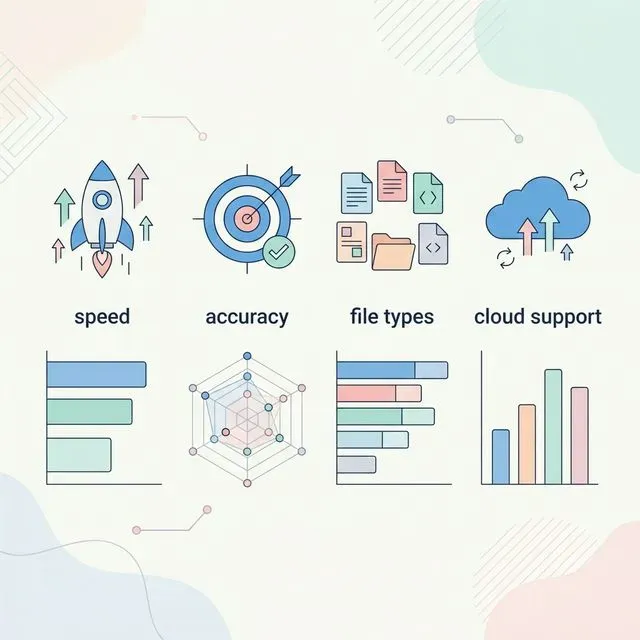
Section titled “The Gaps That Remain”Looking across these tools, certain capabilities are consistently missing:
Cross-platform support: Spotlight is Mac-only, Windows Search and Everything are Windows-only, Alfred is Mac-only. There’s no unified solution for people who work across operating systems.
Reliable content search: Spotlight and Windows Search theoretically support content search but are unreliable in practice. Everything and Alfred don’t even try.
Cloud storage integration: None of these tools natively search Google Drive, Dropbox, or other cloud storage services. At best, they can search locally synced copies.
Natural language queries: All of these tools require you to know exact file names or phrases. None of them understand what you’re looking for when you describe it in plain language.
Unified search across sources: Files, emails, browser history, cloud storage—information is scattered across silos, and these tools don’t unify them.
A Different Approach: Tamsaek
Section titled “A Different Approach: Tamsaek”Tamsaek was built to address the gaps left by traditional desktop search tools.
Cross-Platform by Design
Section titled “Cross-Platform by Design”Tamsaek runs on macOS, Windows, and Linux. The experience is consistent across platforms. If you switch computers or use different operating systems for different tasks, Tamsaek works the same everywhere.
Content Search That Works
Section titled “Content Search That Works”Unlike Spotlight or Windows Search, Tamsaek doesn’t rely on operating system indexing. It has its own extraction engine that properly parses PDFs, Office documents, EPUB files, and more. If a document contains text, Tamsaek can find it.
The index stays up to date automatically. File changes are detected and reindexed without manual intervention. There’s no corruption, no mysterious failures, no need to rebuild.
Cloud Storage Integration
Section titled “Cloud Storage Integration”Tamsaek connects to Google Drive, OneDrive, and SharePoint. Your cloud files become searchable alongside your local files. You can find documents regardless of where they’re stored.
Cloud files are downloaded and indexed locally, so searches work offline. And your data stays private—Tamsaek never uploads your files or queries to its own servers.
Natural Language Understanding
Section titled “Natural Language Understanding”Instead of exact phrase matching, Tamsaek uses AI to understand what you’re looking for. “The budget spreadsheet from last quarter” or “email about the product launch” are valid searches. The AI interprets your intent and finds relevant results.
Unified Search
Section titled “Unified Search”Files, cloud storage, browser history—Tamsaek searches everything together. One query, all your information. No more checking multiple places or remembering where you stored something.
Privacy First
Section titled “Privacy First”Unlike cloud-based search tools, Tamsaek runs entirely on your device. Your files are indexed locally. Your searches are processed locally. Nothing is uploaded to any server. You get powerful AI features without sacrificing privacy.
Choosing the Right Tool
Section titled “Choosing the Right Tool”For app launching on Mac: Alfred (or Spotlight if you want simplicity)
For file name search on Windows: Everything (unbeatable for this use case)
For content search across platforms: Tamsaek (purpose-built for this)
For light searching of recent files: Spotlight or Windows Search (good enough for simple needs)
The right answer depends on your needs. If you only search for files by name, Everything is incredible. If you’re fully in the Apple ecosystem and don’t need reliable content search, Spotlight might be sufficient.
But if you need to find documents by their contents, work across platforms, use cloud storage, or want AI-powered natural language search—the traditional tools don’t solve your problem. That’s exactly where Tamsaek fits.
Download Tamsaek and experience search that works the way you think.
Related articles: