
How to Search Inside Ebooks and EPUB Files on Your Computer
You Read Something Great, But Where Was It?
Section titled “You Read Something Great, But Where Was It?”It happens to all of us. You are reading an ebook, maybe on your tablet or your computer, and you come across a passage that really sticks with you. It might be a perfect quote, a compelling argument, or a reference you want to follow up on later.
You tell yourself you will remember it. Or you think, I will come back to this when I need it. So you keep reading, and eventually you finish the book and move on to the next one.
Then weeks or months later, you need that passage. Maybe you are writing something and want to cite it. Maybe you are having a conversation and want to share that exact quote. Maybe you just want to revisit that idea because it is relevant to something you are working on now.
So you open the ebook again and start flipping through pages. You scroll and scroll, trying to spot the passage you remember. You know it was somewhere in the middle, or maybe near the end. You remember a few words from it, or at least the general topic.
But you cannot find it. The book is three hundred pages long, and you are scrolling blind. After twenty minutes of frustration, you give up. The passage is lost somewhere in your digital library, and you have no way to find it.
If this sounds familiar, you are not alone. Searching inside ebooks is surprisingly difficult, even in 2025. Your computer’s default search does not understand EPUB files. Your ebook reader searches one book at a time. And if you have a large collection spread across different apps and folders, you are basically out of luck.
Let us talk about why this is so hard, what workarounds people try, and what you can actually do to search across your entire ebook collection.
The Ebook Search Problem Nobody Talks About
Section titled “The Ebook Search Problem Nobody Talks About”We tend to assume that digital content is searchable. After all, you can search Google for anything. You can search inside a Word document or a PDF. Why should ebooks be any different?
The problem is that EPUB files, which are the standard format for ebooks, are not treated as text documents by most operating systems. When you save an EPUB to your computer, your operating system sees it as a single file, like a photo or a video. It does not look inside and index the actual text.
Your Ebook Reader Searches One Book at a Time
Section titled “Your Ebook Reader Searches One Book at a Time”If you read ebooks in Kindle, Apple Books, Kobo, or any other dedicated reader app, you can usually search inside the book you are currently reading. Press a search button, type a word or phrase, and the app will find it for you.
But here is the limitation: you have to know which book to search. If you are trying to find a passage and you cannot remember which book it was in, you are stuck. You would have to open each ebook in your library and run a separate search in each one.
For someone with fifty ebooks, that is impractical. For someone with five hundred, it is impossible.
Your Operating System Cannot See Inside EPUBs
Section titled “Your Operating System Cannot See Inside EPUBs”When you use Spotlight on Mac or Windows Search to look for files, you might think it is searching everything on your computer. But it is not searching inside your EPUB files.
Try it right now. Search for a word you know appears in one of your ebooks. If the word is in the file name, it will probably show up. But if the word is only inside the book’s text, your operating system’s search will not find it.
This is because EPUBs are technically compressed archives containing HTML files, images, and metadata. Your operating system does not unpack them and read the text inside. It treats them as opaque blobs.
You could have an entire library of philosophy books on your hard drive, and Spotlight would have no idea what is in them. Search for “Plato” or “existentialism” or “categorical imperative” and you will get nothing, even if those words appear on every other page of your collection.
The Calibre Limitation
Section titled “The Calibre Limitation”Some people use Calibre to manage their ebook libraries. Calibre is great for organizing, converting, and transferring ebooks. It even has a search function.
But Calibre only searches books that are in its library. If you have EPUBs scattered across different folders, or if you have books in other apps, Calibre will not see them. You have to import everything into Calibre first, which is a manual process that many people do not want to deal with.
Plus, Calibre’s search is designed for finding books by title, author, or metadata. It is not really optimized for finding specific passages of text inside the books themselves.
Even when you do have everything in Calibre, the search experience is basic at best. You can search for words, but the results are not always easy to navigate. And if you are looking for a concept rather than a specific word, good luck. There is no semantic understanding, no ability to search for related terms or ideas.
Workarounds People Try (and Why They Fall Short)
Section titled “Workarounds People Try (and Why They Fall Short)”When faced with the ebook search problem, people get creative. Here are some of the workarounds we have seen, and why they ultimately do not solve the underlying issue.
Opening Each Ebook and Using Ctrl+F
Section titled “Opening Each Ebook and Using Ctrl+F”This is the most straightforward approach. You open each EPUB file one by one, press Ctrl+F or Command+F to open the find function, and search for a keyword you remember.
It works in theory. If you remember enough of the passage, you will eventually find it. But it is incredibly time-consuming. If you have more than a handful of ebooks, you could spend hours doing this. And if your memory of the passage is fuzzy, you might search for the wrong keywords and miss it entirely.
Imagine having fifty books in your collection. Even if you only spend two minutes per book, that is over an hour and a half of opening, searching, closing, and repeating. And that assumes you only need to search once. If you are a researcher or student who needs to find references frequently, this approach becomes completely unsustainable.
Converting EPUBs to Text or PDF
Section titled “Converting EPUBs to Text or PDF”Some people try to convert their EPUBs to formats that are more searchable. They use Calibre or other tools to convert everything to plain text files or PDFs.
This approach has problems. First, conversion is messy. Formatting gets lost. Footnotes and references become detached from their context. Tables and images disappear. You might be able to search the text, but what you find might not be usable.
Second, you now have two copies of every book: the original EPUB and the converted version. That takes up space and creates confusion about which file is the “real” one. Did you update the notes in the EPUB or the PDF? Which one should you open when you want to continue reading?
Third, the conversion process itself takes time. If you have a large collection, you are looking at hours of batch processing. And every time you add a new book, you have to remember to convert it too.
Bookmarking and Highlighting While Reading
Section titled “Bookmarking and Highlighting While Reading”The most organized readers highlight and bookmark important passages as they go. This works great if you have the foresight to do it, and if you consistently use the same reading app.
But most of us do not do this religiously. We read for pleasure or for general learning, not with the expectation that we will need to cite every interesting passage later. Plus, if you read across multiple devices or apps, your highlights get scattered. The quote you bookmarked on your tablet does not show up when you search on your computer.
Even if you are diligent about highlighting, you still face the same fundamental problem: you can only search within one book at a time. Your highlights are siloed inside each individual ebook. There is no way to ask, “Show me all my highlights about economics” across your entire library.
What You Actually Need: Search Across Your Entire Library
Section titled “What You Actually Need: Search Across Your Entire Library”Here is what would actually solve this problem: a search tool that can read all your EPUB files at once, index the text inside them, and let you search across your entire collection from one place.
You would type a phrase, a keyword, or even a general topic, and the tool would search every ebook you own. Results would show you which book contains the passage, and ideally take you right to it.
This is not a crazy futuristic idea. We have this for Word documents, PDFs, and web pages. We should have it for ebooks too.
Tamsaek: Full-Text Search for Your Ebook Collection
Section titled “Tamsaek: Full-Text Search for Your Ebook Collection”Tamsaek is a desktop search tool that indexes the content of your files, not just their names. And yes, that includes EPUB files.
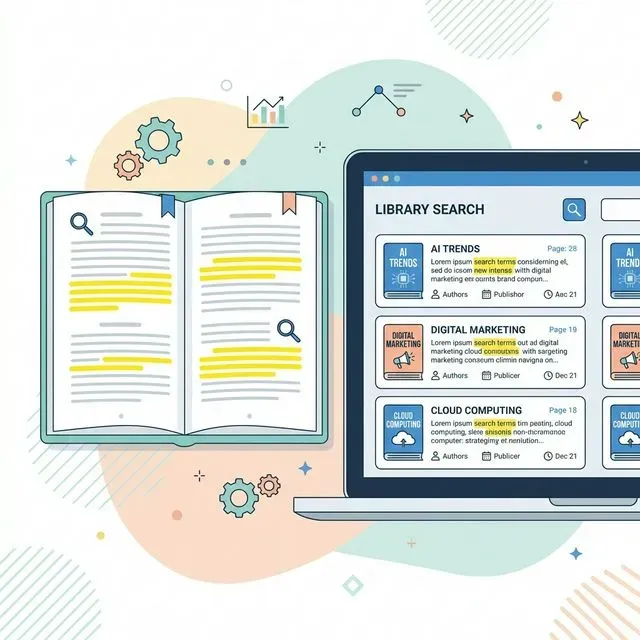
When you point Tamsaek at your ebook collection, it reads through each EPUB, extracts the text, and builds a searchable index. That means you can search for any word or phrase that appears in any of your ebooks, and get results instantly.
Unlike your operating system’s search, Tamsaek actually understands what is inside your EPUBs. It unpacks them, reads the text, and makes every word searchable. It does not matter what the file is named. It does not matter where you saved it. If the text is in there, Tamsaek can find it.
Finding That Lost Passage
Section titled “Finding That Lost Passage”Remember that quote you could not find? With Tamsaek, you just type what you remember. Maybe it was something about “habit formation” or “the industrial revolution” or a specific person’s name. Tamsaek searches across all your ebooks and shows you every occurrence.
The results tell you which book the passage is in, which chapter or section, and show you a preview of the surrounding text. You can jump right to the book and the exact location.
Natural Language Search
Section titled “Natural Language Search”You do not need to remember exact phrases. Tamsaek understands natural language, so you can search the way you think. “That part about cognitive biases in the psychology book” or “the quote about leadership from the business book I read last year.”
This means you can search for concepts, not just exact words. If you search for “decision making,” Tamsaek will also find passages about “choices,” “judgment,” and “selecting options.” You do not need to guess which exact terminology the author used.
For researchers and students, this is a huge advantage. You can explore your library conceptually, discovering connections between books that you might never have found through manual browsing.
Not Just Ebooks
Section titled “Not Just Ebooks”The nice thing about Tamsaek is that it does not only search ebooks. It also indexes your PDFs, Word documents, spreadsheets, and other files. So if you are trying to find something and you are not sure whether it was in an ebook, a PDF, or a document someone emailed you, one search covers everything.
This unified search is a game changer for researchers, students, writers, and anyone who works with information across different formats. Maybe you read something in a PDF paper, then encountered a related idea in an ebook, and took additional notes in a Word document. With Tamsaek, you can search across all three at once.
The search results are organized and easy to scan. You can see which file type each result comes from, preview the surrounding text, and jump directly to the location in the file. No more hunting through different apps or folders.
Your Books Stay Private
Section titled “Your Books Stay Private”Tamsaek runs locally on your computer. Your ebooks are not uploaded to any cloud service. Your search queries are not sent to a server. Your reading habits stay private, which is especially important if you have sensitive or proprietary content in your library.
Works With Your Existing Setup
Section titled “Works With Your Existing Setup”You do not need to move your ebooks into a special library or change anything about how you organize them. Tamsaek works with your existing folders. Books scattered across your Downloads folder, your Documents folder, and three different subfolders? That is fine. Tamsaek indexes wherever you point it.
If you also have ebooks in cloud storage like Google Drive or OneDrive, Tamsaek can connect to those services too. Your ebook collection might be split between your computer and the cloud, and Tamsaek brings it all together in one searchable index.
Getting Started
Section titled “Getting Started”If you have been frustrated by ebook search, give Tamsaek a try. The free tier lets you start building your index and searching your collection right away.
Setup is straightforward. Download Tamsaek, point it at the folder where you keep your ebooks, and let it index your collection. The initial indexing might take a little while if you have hundreds of books, but once it is done, searches are instant.
You can also add other folders to the index: your documents folder, your downloads, anywhere you keep files you might need to search later. The more you add, the more powerful your search becomes.
Think of it as giving yourself a superpower you did not know you were missing. Every passage you have ever read becomes findable again. Every reference, every quote, every idea is just a search away. Your ebook collection transforms from a static archive into a living, searchable knowledge base.
No more opening books one by one. No more scrolling endlessly hoping to spot the passage you need. Just type what you are looking for and find it.